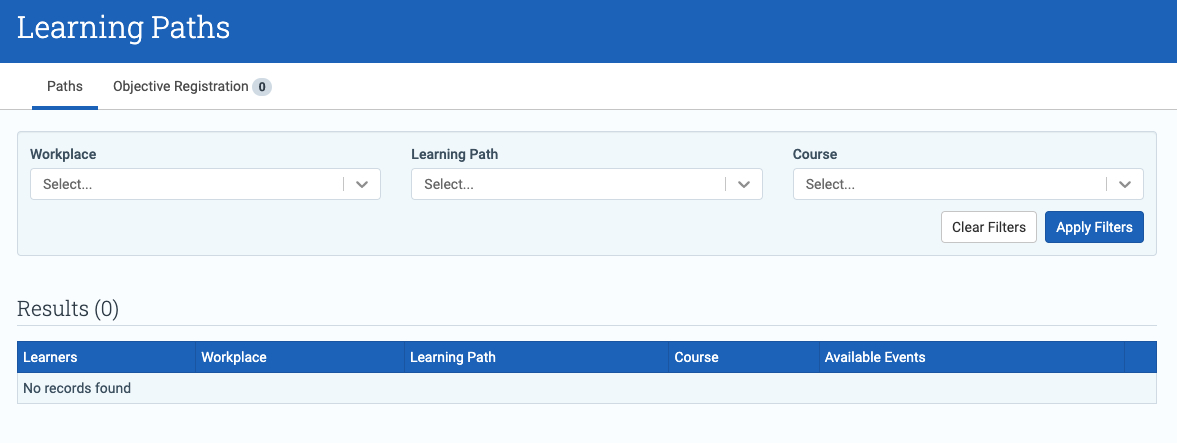
Objective Registration provides visibility into learners who are registered on a Learning Path Course Objective but have not yet been registered onto a specific Event Objective.
It also allows you to:
- bulk register learners onto events
- transition a Course Objective to an Event Objective
- create new events quickly when none are available
Contents
What is it for?
- a single dashboard showing learners registered on a Learning Path Course Objective but not yet placed onto an Event
- a fast way to bulk register learners onto Events
- ensuring the right learners are scheduled at the right time
- identifying scheduling gaps and quickly creating Events to fill them
Overview
The dashboard shows:
- the number of learners not yet registered onto an Event
- the number of available Events for the Course
If you are using the Workplaces feature, the overview also highlights the number of learners available at the configured locations.
Register learners onto an Event
- Select the row of learners you want to register.
- Select an available Event from the list on the left.
- Use date filters if needed to narrow down available Events.
- Use learner filters to refine the list of learners.
- Select the learners and click Register.
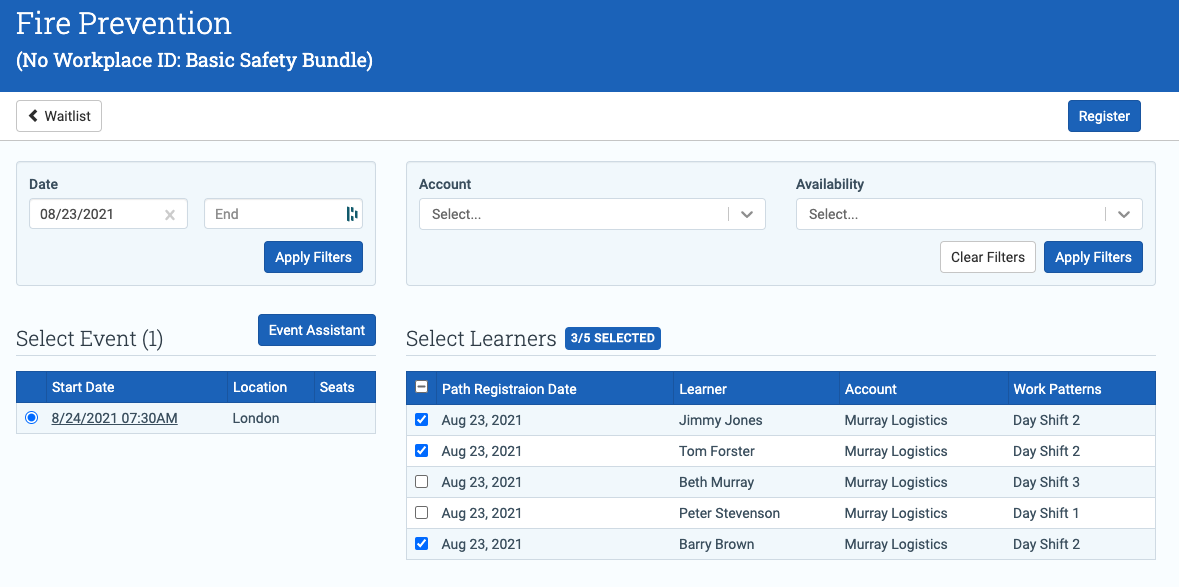
Once registered, learners are removed from the list. Repeat the process until all learners are scheduled.
Event Assistant
If no Events are available for the Course, use the Event Assistant to create one.
The Event Assistant analyzes learner availability to help you schedule an Event that accommodates the greatest number of learners.
How it works
- Select a Start Date.
- Set the Length (duration) for learner availability.
- Review the calendar view showing learner availability by date.
- Select a date to see available time slots in the right-hand column.
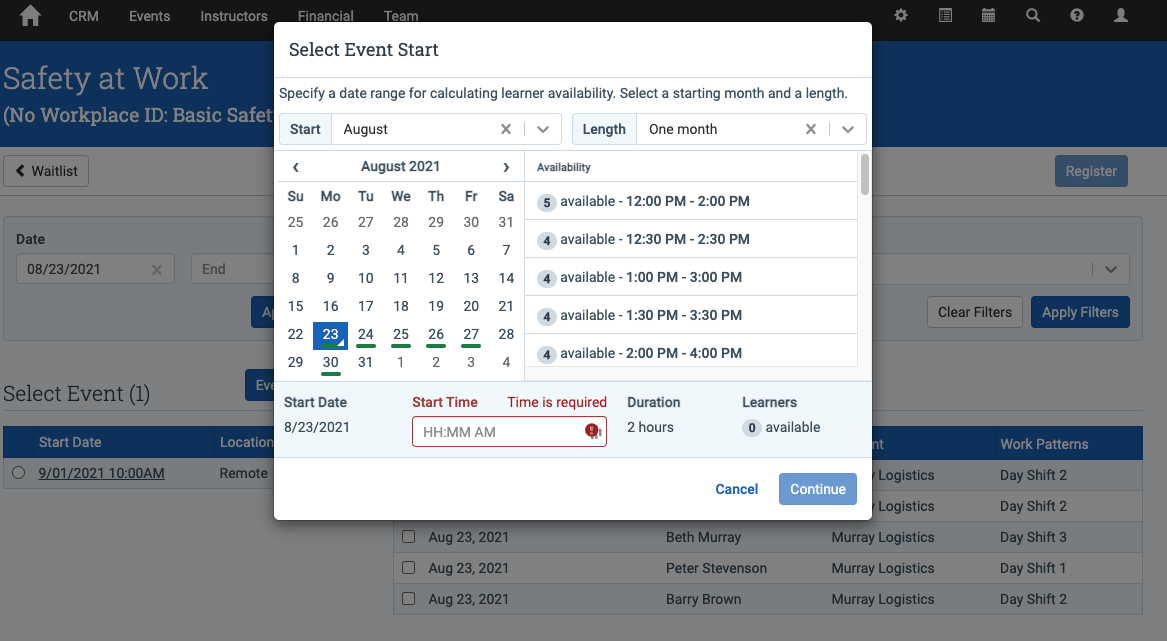
Enter a Start Time. The system displays how many learners are available at that time.
Continue through the assistant to create the Event.
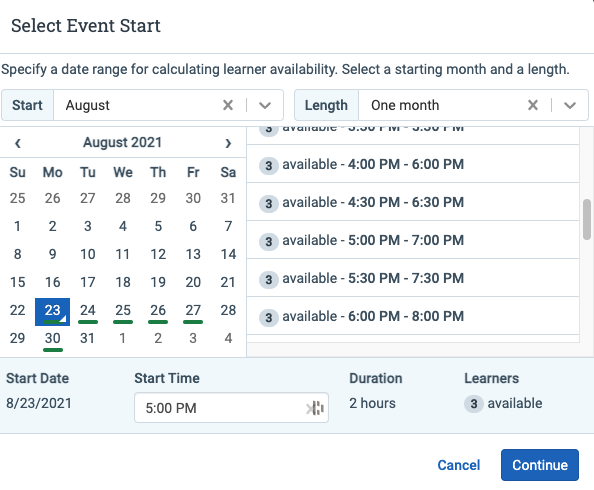
After creating the Event, click Back to Learning Path Registration to return to the dashboard.
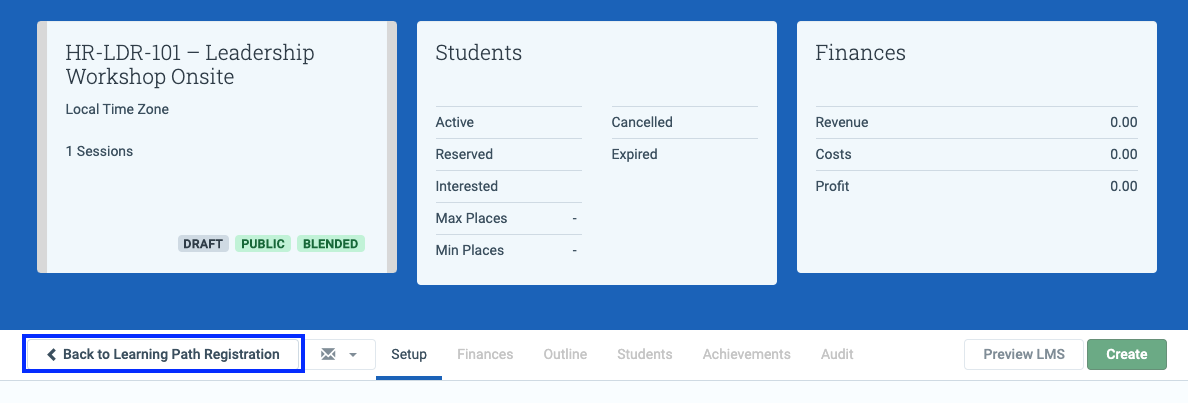
The newly created Event will appear in the list and can be used to register learners.
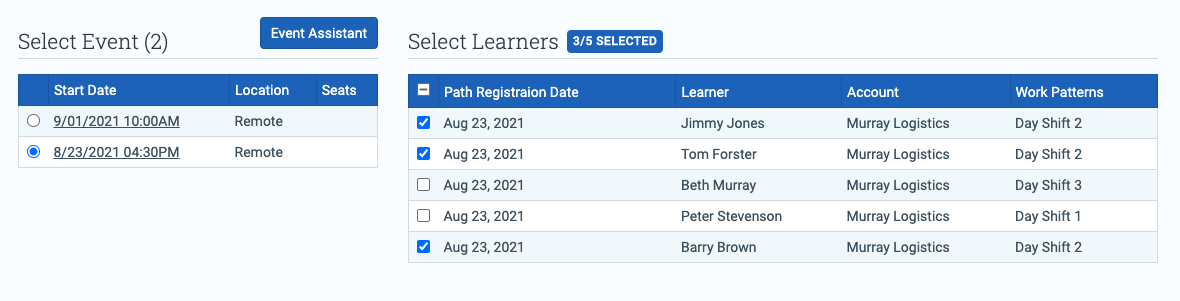
Continue creating Events and registering learners until all learners are assigned. When complete, the table will be empty.