This article explains how different types of learning content behave in the Student Portal, including how progress, completion, and scores are tracked.
Understanding how each content type reports data is essential for accurate learner tracking and reliable reporting.
Contents
- Overview
- SCORM content
- SCORM best practices
- SCORM attempts
- Which score is shown?
- Statuses in the Student Portal UI
- Testing SCORM reporting
- Other content types
- Common mistakes
- Next steps
Overview
Administrate supports multiple content types within the Student Portal, including SCORM packages, videos, documents, audio files, native exams, and weblinks.
Each content type reports learner progress differently. In some cases, Administrate settings override settings defined within your content package.
Note: We recommend launching SCORM content in a new window for the best overall experience and the most accurate reporting.
This can be configured in the LMS section of the Control Panel. If you do not have access to this setting, contact Support.

SCORM content
Administrate supports both SCORM 1.2 and SCORM 2004. Each version reports progress and scores differently.
SCORM 1.2
SCORM 1.2 content can usually report either completion progress or score-based pass/fail results. It cannot report both detailed percentage completion and a score in the same way as SCORM 2004.
Progress tracking
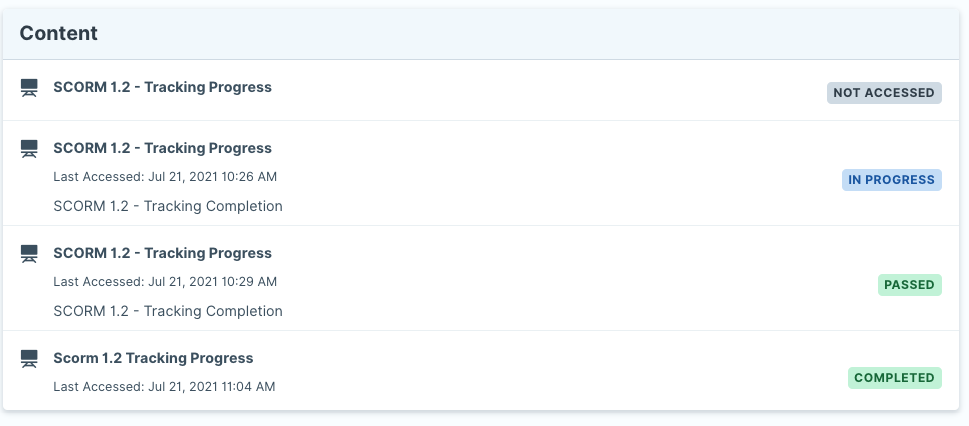
SCORM 1.2 does not support detailed percentage-based progress tracking using cmi.progress_measure. Administrate therefore reports one of the following states:
- Not Accessed
- In Progress
- Complete
- Passed
Partial progress values such as 50% are not available in SCORM 1.2. If your content uses quizzes without a defined pass mark, many authoring tools will report the learner as Passed once all required content has been completed.
How this looks to the learner
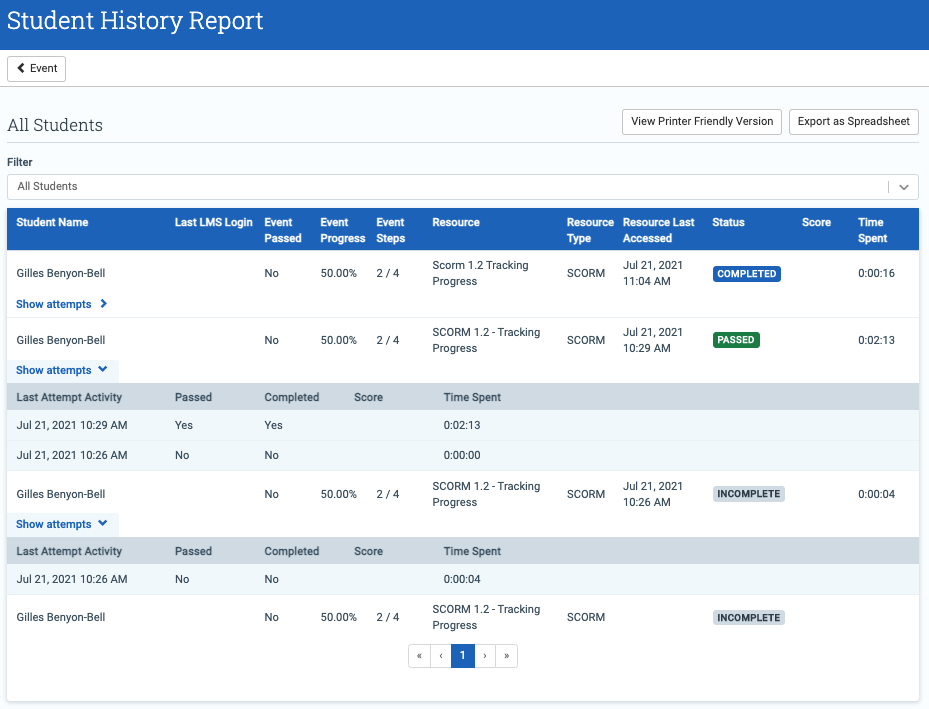
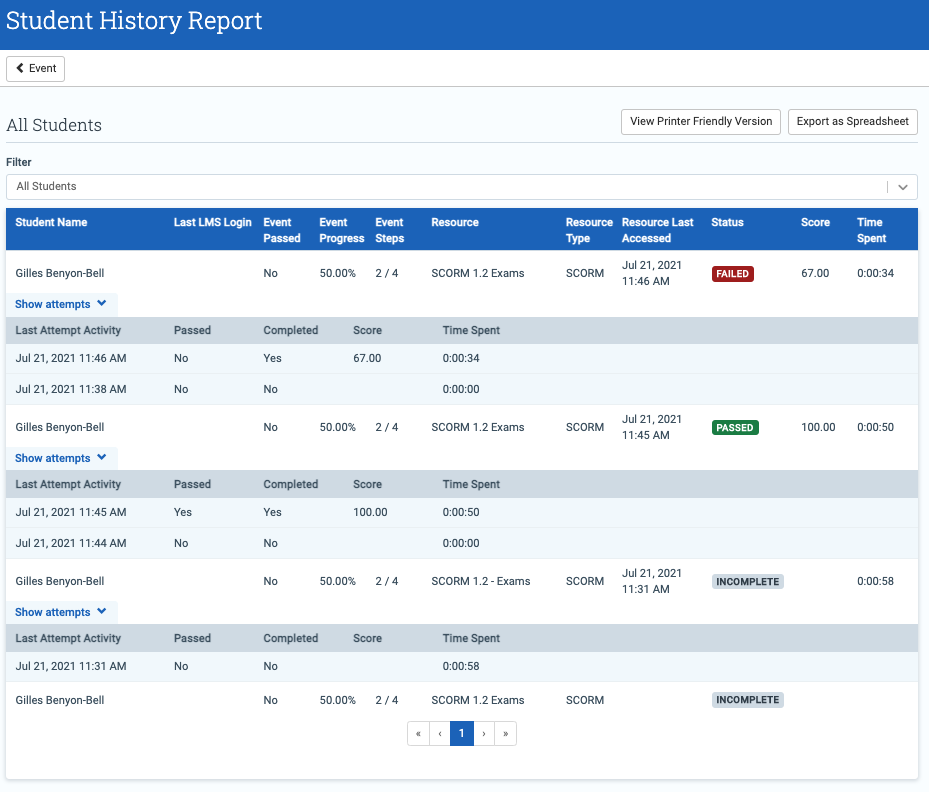
How this looks in the TMS for an administrator
Score tracking
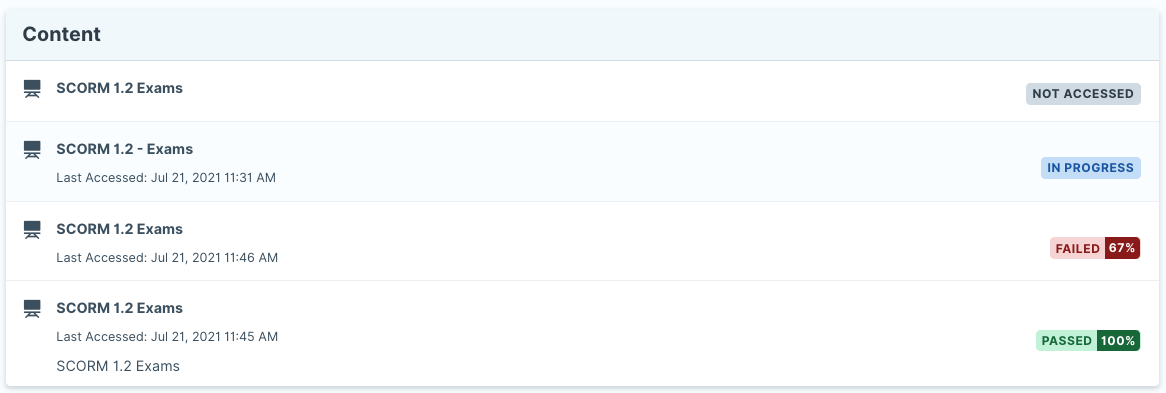
Scores are based on cmi.score.raw and are reported as:
- Not Accessed
- In Progress
- Passed %
- Failed %
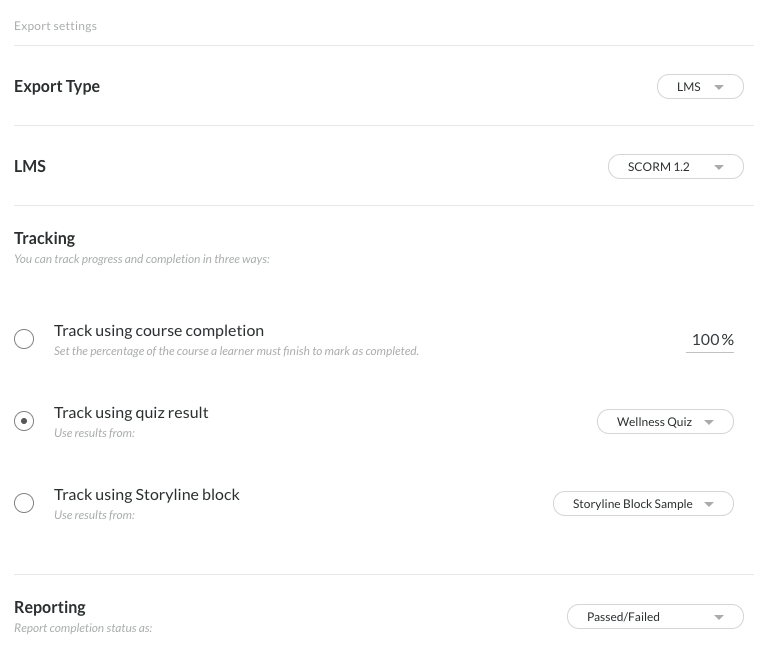
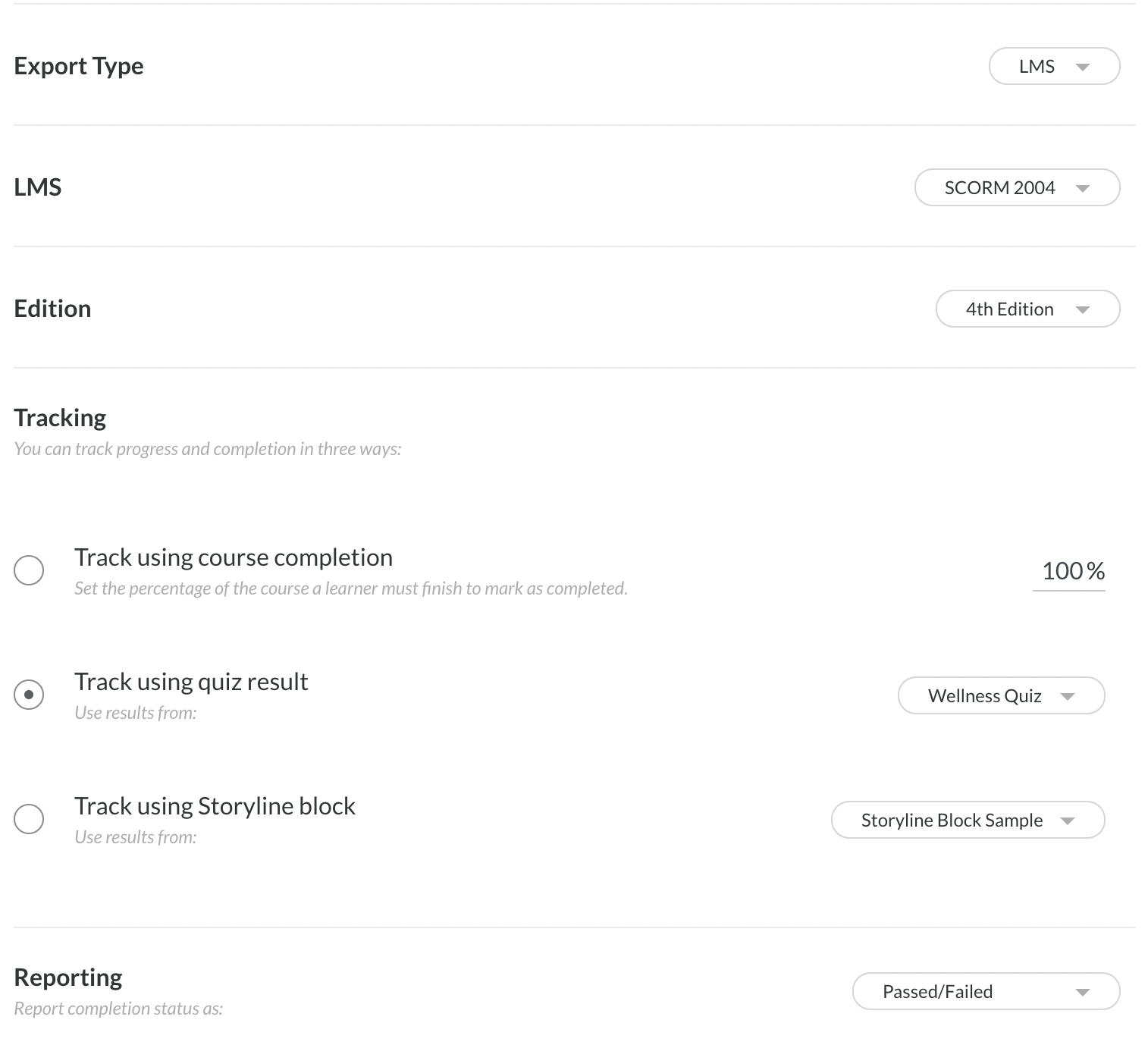
To enable score tracking, configure your authoring tool to report using quiz results such as Passed/Failed or Passed/Incomplete.
Example from Articulate 360 for SCORM 1.2:
How this looks in the learner UI
How this looks in the TMS
SCORM 2004
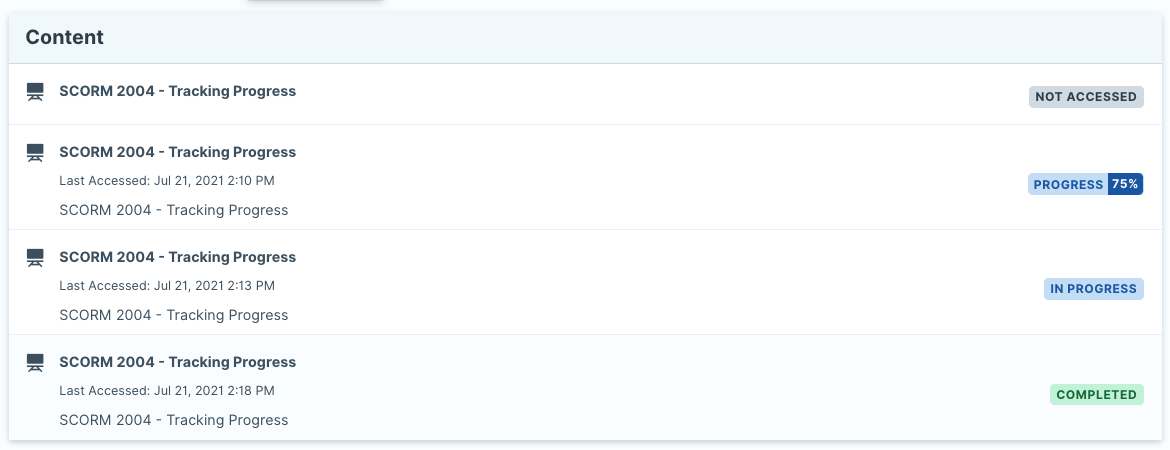
Progress tracking
SCORM 2004 supports detailed progress tracking using cmi.progress_measure.
If progress data is available, Administrate reports:
- Not Accessed
- In Progress
- In Progress %
- Complete
This allows learners and administrators to see percentage-based progress before completion.
Score tracking
Scores are reported using cmi.score.raw, consistent with SCORM 1.2. Administrate reports:
- Not Accessed
- In Progress
- Passed %
- Failed %
Pass and fail thresholds are defined in your authoring tool.
To enable score tracking, configure your authoring tool to report using quiz results such as Passed/Failed or Passed/Incomplete.
Example from Articulate 360 for SCORM 2004:
SCORM best practices
- Launch SCORM content in a new window.
- Use quiz-based reporting if scores matter.
- Test content in the portal before release.
- Confirm your authoring tool sends the SCORM data you expect Administrate to report.
If your content includes an exam and you need score reporting, configure SCORM reporting carefully and verify the output in both the learner UI and the TMS.
To launch SCORM content in a new window, go to:
Control Panel → LMS → Launch SCORM Inline → No
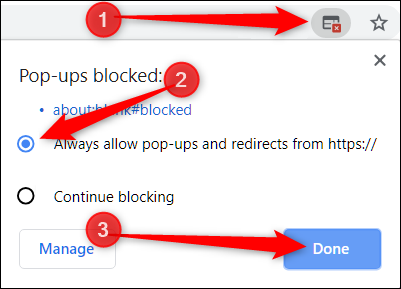
Important: Pop-up blockers may prevent SCORM content from launching in a new window. Learners may need to allow pop-ups in their browser.

SCORM attempts
Authoring tools often let you define how many times a learner can retake an exam. You can also set an attempt number in the Event Outline in Administrate.
The Administrate attempt number multiplies the number set in your authoring tool. If no attempt restriction is set in the SCORM package, the Administrate setting has no effect.
| Authoring Tool Attempts | Administrate TMS Attempts | Total Learner Attempts Allowed |
| 1 | 1 | 1 |
| 1 | 3 | 3 |
| 3 | 1 | 3 |
| 3 | 3 | 9 |
| Unlimited / no restriction | Blank | Unlimited |
| Unlimited / no restriction | 5 | Unlimited |
Which score is shown?
Learners can move from Failed to Passed, but once they have passed, they cannot move back to failed in the displayed result. If a learner fails multiple times, the most recent failed score is shown.
| Attempt #1 | Attempt #2 | Attempt #3 | Result shown in the portal |
| Fail 40% | Passed 70% | Fail 10% | Passed 70% |
| Fail 50% | Fail 30% | Fail 10% | Fail 10% |
| Fail 50% | Passed 80% | Passed 70% | Passed 80% |
| Fail 50% | Passed 70% | Passed 90% | Passed 90% |
All attempts are stored in Administrate and can be reported on using the Reporting Engine or the Student History Report.
Statuses in the Student Portal UI
| Status | How it is reported | Applicable SCORM type |
| Not Accessed | The learner has not attempted the content. | SCORM 1.2 and SCORM 2004 |
| In Progress | The learner has clicked into the SCORM module. | SCORM 1.2 |
| Complete | The learner has completed all elements within the SCORM file and there is no graded quiz. | SCORM 1.2; SCORM 2004 if it has completion_status and not success_status |
| Progress X% | The learner has completed at least one part of the file, such as a slide or interaction. | SCORM 2004, if it contains cmi.progress_measure |
| Passed/Failed % | The learner completed the content and achieved or did not achieve the pass mark set when publishing the file. The SCORM must contain cmi.score.raw. | SCORM 1.2 and SCORM 2004 |
| Passed/Failed with no % | The learner completed the content but no percentage score is available. This can occur when there is no cmi.score.raw or min/max score set in the file. | SCORM 1.2 with lesson_status; SCORM 2004 with success_status |
Testing SCORM reporting
The best way to confirm whether your SCORM file reports the correct statuses is to create a test Event in Administrate, enroll yourself as a learner, and test the content in the Student Portal.
You can also test the file by uploading it to SCORM Cloud.
- Launch the file and check Completion, Success, Score, and Total Time.
- Open the debug log.
- Look for the required status or score value.
- For example, if the debug log shows cmi.core.score.raw returning a score of 20, you should expect Administrate to record that score as well.
To understand how to set these statuses, refer to your authoring tool’s documentation to confirm whether the setting is supported and how to configure it.
Other content types
Videos
Videos do not report scores or pass/fail status. You can configure a completion percentage, which appears in the learner UI. This appears to learners as an overall progress ring in the Student Portal.
Audio files
Audio files do not report scores, pass/fail status, or completion percentage.
Documents
Documents do not report scores, pass/fail status, or completion percentage.
Exams (native to the Student Portal)
Exams created directly in the Student Portal report pass/fail status to learners.
Detailed scores are available to administrators in the TMS, but are not shown in the learner interface.
Weblinks
Weblinks do not report scores, pass/fail status, or completion percentage.
Common mistakes
- Expecting SCORM 1.2 to show detailed percentage progress: it cannot report progress in the same way as SCORM 2004.
- Incorrect SCORM reporting configuration: quiz reporting must be enabled if you want score tracking.
- Launching SCORM inline when score reporting matters: this can reduce tracking reliability.
- Pop-up blockers preventing launch: if SCORM launches in a new window, learners may need to allow pop-ups.
- Expecting all content types to report completion: only some formats support progress or completion tracking.
Next steps
- Learn more about the learner environment: Managing Your Student Portal
- Configure portal setup and access: Student Portal – Creating Your Portal