We’ve compiled a list of GraphQL resources that our team finds especially useful.
These resources are a good starting point whether you are new to GraphQL or looking for Administrate-specific developer guidance.
Table of contents
What is GraphQL and how does it work?
The GraphQL Foundation website is an excellent starting point. In particular, the Learn GraphQL section provides a clear introductory walkthrough.
Many team members in non-technical roles have successfully completed this tutorial and used it to begin working with our API.
What other Administrate-specific resources are available?
Our Developer Portal includes documentation, API tools, and access to a free developer account where you can experiment safely in a test environment.
It is not only for documentation. It is also the main place to explore and learn the Administrate API in a safe environment.
How to register on our Developer Portal
- Go to the Developer Portal and click Sign up, or go directly to the signup page.
- Enter a unique email address.
- Click Create account. You’ll receive an email to verify your address.
- Open the verification email and click the link (check your spam folder if needed).
- Enter your name, choose a password, and click Create account.
How to link your developer account to a TMS instance
-
Ensure you have a user account on the Administrate instance you want to connect to, and that you know your login credentials.
-
Log in to your developer account on the Developer Portal.
-
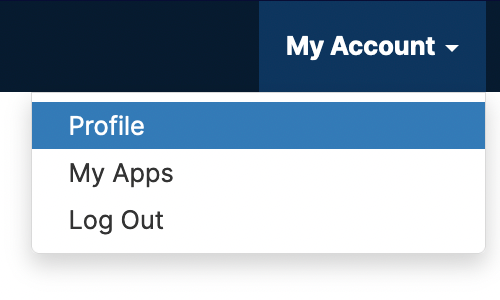
Click My Account in the top navigation bar and select Profile, or go directly to your profile page.
-
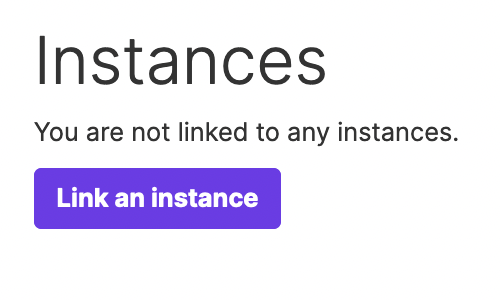
In the Instances section, click Link an instance.
-
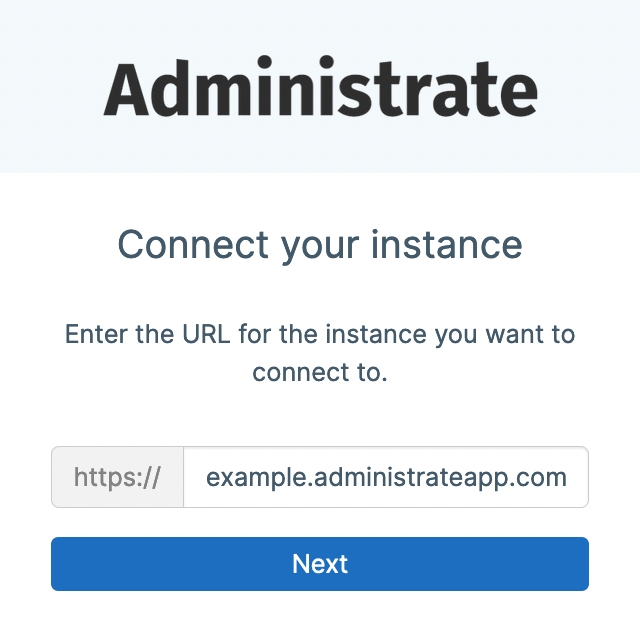
Enter the URL of the Administrate instance you want to connect to (for example, example.administrateapp.com, where example is your subdomain).
-
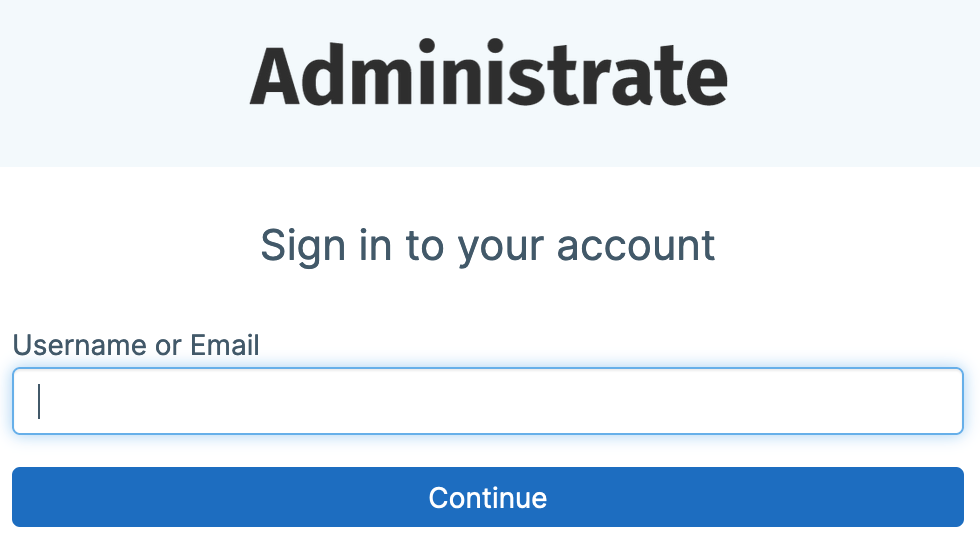
Enter your Administrate user email and password to log in.
If you are already logged into an Administrate instance, the portal may automatically offer to connect to that instance. To link a different instance, log out first and restart the process. -
Click Allow access.
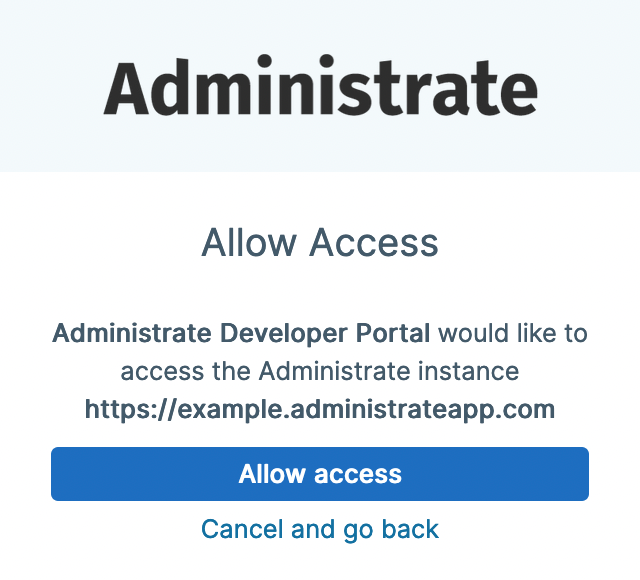
-
Once linked, any GraphQL queries you run in the Developer Portal will execute against that connected instance.