- Overview
- What is Microsoft Teams?
- What is the Microsoft Teams integration?
- How the integration works
- Choosing who organizes your meetings
- Permissions the integration needs, and why
- Configuring the Integration
- Setting up an Event with Teams
- Sharing Joining Information with Learners
- Sharing Joining Information with Instructors
- Troubleshooting
- FAQs
Overview
Administrate’s Microsoft Teams integration lets administrators automatically create and manage Teams meetings for scheduled events, and make joining links available to instructors and registered learners.
When to Use This
- When running vILT sessions in Microsoft Teams and you want meeting links created automatically from Administrate events.
- When you want instructors automatically invited via Outlook/Teams and learners to access a join link via LMS or email.
Prerequisites
- Microsoft 365 with Teams and Exchange Online enabled for your organization.
- A Microsoft Entra administrator who can register an app and grant admin consent (Global Administrator or Privileged Role Administrator).
- Optionally, a Teams Administrator, if you want every instructor on an event to be a co-organizer of its meeting (see Configuring the Integration).
- Administrate support assistance to complete integration setup (Client ID, Tenant ID, Client Secret).
What is Microsoft Teams?
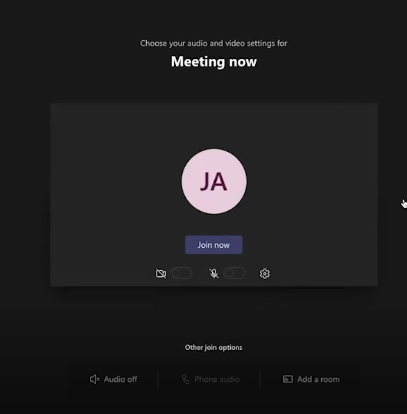
Microsoft Teams is a tool for online virtual conferencing. It can be used for small instructor-led training (less than 300 learners) with a Microsoft 365 Business Basic (or higher) plan, and larger webinar-style sessions can use Teams events such as town halls and webinars. The integration creates standard Teams meetings.
Teams allows presenters to communicate with participants over video, live audio, and chat, as well as share screens and documents.
What is the Microsoft Teams integration?
With Administrate’s integration, training administrators can add a Teams meeting to a scheduled event automatically and share the joining link with instructors and learners.
How the integration works
The integration connects to your Microsoft 365 tenant through an app you register in Microsoft Entra ID. It signs in as that app, using the Client ID and Client Secret you give us. No person signs in, so the integration acts with the app’s own Application permissions and never on behalf of a user.
Every Teams meeting has one organizer: the Microsoft user whose calendar the meeting lives on. When an event is synced, the integration:
- Looks up the organizer and each of the event’s instructors in your directory by email address.
- Creates (or updates) a calendar event with a Teams meeting on the organizer’s calendar, with the event’s instructors as attendees.
- If you have set up the Teams application access policy, makes each instructor whose email address matches a user in your tenant a co-organizer of the Teams meeting, so they can admit people from the lobby and change meeting options. Teams allows up to 10 co-organizers per meeting.
- Saves the meeting’s join link to the event in Administrate as its Virtual Classroom Link.
Instructors’ invitations are sent by Exchange from the organizer’s mailbox, exactly as if the organizer had sent the meeting from Outlook. The integration writes only to the organizer’s calendar: it never writes to the calendars of other instructors, never reads or sends email, and never invites learners. Learners get the join link through the LMS or a communication template (see Sharing Joining Information with Learners).
Choosing who organizes your meetings
You can run the integration in one of two ways. Decide before you set it up, because it changes which mailboxes the app needs access to.
- Service user. One dedicated Microsoft 365 account, such as
teams-training@yourcompany.com, organizes every meeting. Instructors are invited to it. - Instructor-owned. Each meeting is organized by the event’s Virtual Classroom Host, if one is set, or otherwise by its Primary Instructor. Other instructors are invited to it.
| Service user | Instructor-owned | |
|---|---|---|
| Who organizes the meeting | The service user | The Virtual Classroom Host, or the Primary Instructor |
| Mailboxes the app needs to write to | Only the service user’s | Every instructor or host who organizes a meeting |
| Join link when instructors change | Stays the same | Changes if the organizer changes: the old meeting is cancelled and a new one created |
| Instructors without an account in your tenant | Can be invited, but can’t be co-organizers | Can be invited, but can’t be the Primary Instructor or host |
| Extra license | One Microsoft 365 license with Exchange Online and Teams for the service user | None |
| How the meeting appears to instructors | An invitation from the service user | The organizer’s own meeting; an invitation for everyone else |
If you choose a service user, give its email address to our support team along with the app credentials. The Virtual Classroom Host field is hidden on events once a service user is configured.
Permissions the integration needs, and why
The integration uses three Microsoft Graph Application permissions and, optionally, a Teams application access policy. It needs no Delegated permissions.
| Permission | Type | What Administrate uses it for | What happens without it |
|---|---|---|---|
Calendars.ReadWrite |
Application | Creates, reads, updates and cancels the meeting’s calendar event on the organizer’s calendar. Exchange then sends the invitations to instructors. | No meetings are created. Every sync fails. |
OnlineMeetings.ReadWrite.All |
Application | Makes each instructor whose email address matches a user in your tenant a co-organizer of the Teams meeting, up to the Teams limit of 10 co-organizers. | Meetings and join links are still created, but instructors are not made co-organizers. |
User.Read.All |
Application | Looks up the organizer and each instructor by email address to get their Microsoft user ID. Administrate uses only the ID. | Every sync fails. |
| Teams application access policy | Teams policy | Lets the app update the organizer’s online meetings. Microsoft requires this policy, in addition to OnlineMeetings.ReadWrite.All, before the app can make instructors co-organizers. |
Meetings and join links are still created, but only the organizer can manage the meeting. |
Narrowing the permissions
Each permission can be narrowed as follows. Your Microsoft administrator decides how to apply these limits in your tenant.
| Permission | How it can be narrowed | Impact |
|---|---|---|
Calendars.ReadWrite |
Limit it to the mailboxes of the users who organize meetings: the service user’s mailbox, or your instructors’ and Virtual Classroom Hosts’ mailboxes. | Syncs fail for any event whose organizer is outside the limit. With instructor-owned meetings, include each new instructor or host before their first event, keep both the old and the new organizer in scope when the organizer changes, and keep departing instructors in scope until their future events have been reassigned. Changes to the limit can take up to 2 hours to apply. A limit set with Exchange Online’s role-based access control for applications only takes effect if Calendars.ReadWrite isn’t also granted tenant-wide in Entra. |
OnlineMeetings.ReadWrite.All and the Teams application access policy |
Grant the policy only to the users who organize meetings: the service user, or a group of instructors and hosts. Or leave out both if you don’t need co-organizers. | If the policy doesn’t cover an organizer, their meetings are still created but instructors aren’t made co-organizers. |
User.Read.All |
Can’t be narrowed. Microsoft doesn’t allow directory reads to be limited to a group. | None. It is required in every setup. |
| Delegated permissions | Remove them. | None. The integration doesn’t use them. |
What the integration does not do
- It does not sign in as a user. If you followed an earlier version of this guide, you may have added
User.Read.All (Delegated)andUser.Read (Delegated). The integration doesn’t use them, and you can remove them. - It does not read or send email. It needs no
Mailpermissions. Invitations and cancellations are sent by Exchange from the organizer’s mailbox. - It does not write to learners’ calendars, or to instructors’ calendars unless they organize the meeting. Invitations reach the other instructors’ calendars through normal meeting-request delivery.
- It does not invite learners to the Teams meeting.
Configuring the Integration
Setting up the integration requires assistance from our support team. Complete the steps below in your Microsoft tenant, then send us the credentials.
1. Register the app
- Sign in to the Microsoft Entra admin center and go to Identity → Applications → App registrations.
- Click New registration and fill in the details. Choose Single tenant as your account type, with no Redirect URI.
- Under Certificates & secrets for your newly created app, create a new Client secret.
- Note: Microsoft has removed the “never expires” option. Select the longest duration available, store the secret value securely, and set a reminder to send us a new one before it expires.
- Take note of the Application (client) ID and Directory (tenant) ID on the app’s Overview page.
2. Add the API permissions
- Under API permissions, click Add a permission → Microsoft Graph → Application permissions and add:
Calendars.ReadWriteUser.Read.AllOnlineMeetings.ReadWrite.All, if you want instructors to be co-organizers
- Click Grant admin consent for your organization. This needs a Global Administrator or Privileged Role Administrator.
Don’t add any Delegated permissions; the integration doesn’t use them.
3. Optional: let instructors co-organize meetings
The organizer can always manage the meeting. If you also want the other instructors on the event to be made co-organizers, so they can admit people from the lobby and change meeting options, a Teams Administrator needs to create a Teams application access policy for the app and grant it to the users who organize meetings: the service user, or your instructors and Virtual Classroom Hosts. Only the organizer needs the policy; co-organizers don’t. Only instructors whose Administrate email address matches a user in your tenant can be co-organizers, and Teams allows up to 10 per meeting.
Follow Microsoft’s guide to configuring an application access policy, using the app’s Application (client) ID. Policy changes can take up to 30 minutes to take effect.
4. Send us the credentials
Provide the following to our team to complete setup:
- Client ID
- Client Secret
- Tenant ID
- the service user’s email address, if you are using one
Switching from instructor-owned meetings to a service user
Meetings organized by instructors stay on their calendars until they are moved. To switch:
- Make sure the app can reach the calendar of every current organizer, including Virtual Classroom Hosts who aren’t instructors, and the service user’s calendar while you switch. If you want co-organizers, also grant the Teams application access policy to the service user. Wait for these changes to take effect before resyncing: up to 30 minutes for the Teams policy, and up to 2 hours for a change to the app’s mailbox access.
- Ask our support team to add the service user to your integration.
- Resync every future event that already has a Teams meeting, using Sync with MS Teams in the event’s Add-ons menu. Each meeting is cancelled on its current organizer’s calendar and recreated on the service user’s, with a new join link.
- Re-send joining information to learners who received the old link by email. The LMS shows the new link automatically.
- Only then, if you want to, limit the app’s calendar access and the Teams policy to the service user.
An event you haven’t resynced before limiting access will fail its next sync, because the app can no longer reach the instructor’s calendar where its meeting lives. Contact our support team if that happens.
Setting up an Event with Teams
When creating a new event (or updating an existing one), you can specify Microsoft Teams as the Virtual Classroom.
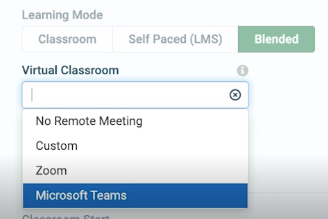
If no Primary Instructor is assigned yet, you’ll see a notice indicating the meeting cannot be created.

A meeting will not be created until after a Primary Instructor is assigned to the event. Once assigned, it automatically populates the link field below “Virtual Classroom Link”.
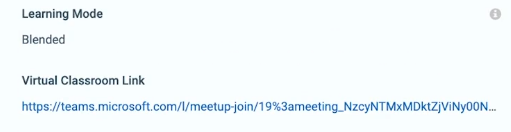
Without a service user, you can also choose a Virtual Classroom Host to organize the meeting instead of the Primary Instructor. The host must have an account in your Microsoft tenant.
Updating the Teams Meeting
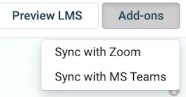
Many updates (including reassigning instructors and cancelling events) will automatically update the associated Teams meeting. If you need to force a resync, you can do so under the Add-ons menu.
Replacing an instructor safely
When the instructor delivering an event changes, follow this order so the meeting is never left without a host:
- Add the new instructor to the event.
- Make the appropriate instructor the Primary Instructor.
- Remove the old instructor.
- Resync with Microsoft Teams from the Add-ons menu if the meeting has not updated automatically.
Removing the only instructor first can remove the meeting link from the event, because without a service user the meeting has no host left.
Whether the join link changes depends on who organizes the meeting:
- With a service user, the organizer doesn’t change. The existing meeting is updated, so the join link stays the same and links already shared with learners keep working.
- Without a service user, the organizer is the Virtual Classroom Host, or the Primary Instructor if no host is set. When that person changes, the organizer changes, and Teams doesn’t allow a meeting’s organizer to change. The integration cancels the old meeting and creates a new one on the new organizer’s calendar, with a new join link. If a Virtual Classroom Host is set and stays the same, changing the Primary Instructor updates the existing meeting and keeps its link. The LMS shows the new link automatically; re-send joining information to learners who received the old link by email.
Sharing Joining Information with Learners
The integration doesn’t invite learners to the Teams meeting. Share the join link with them in one of the following ways. Learners from outside your organization join as guests, subject to your Teams lobby and external access settings.
Via LMS
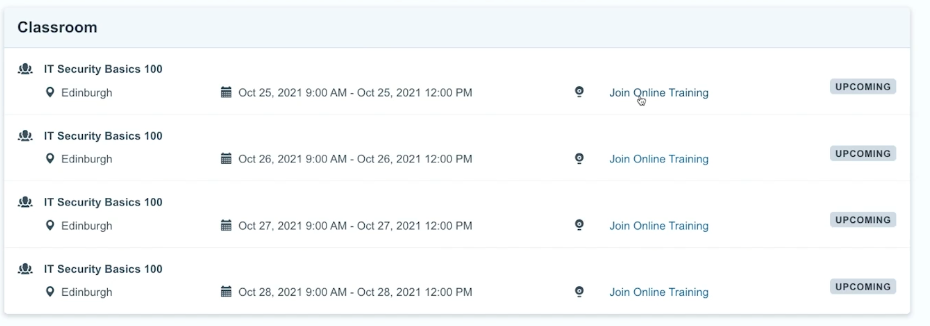
Learners can access a Join Online Training link to the meeting within the LMS.
Via Email (Communication Template)
You can also notify learners via email using a communication template.
Create a Communication Template
- Create a communication template by following this guide: Communication Templates .
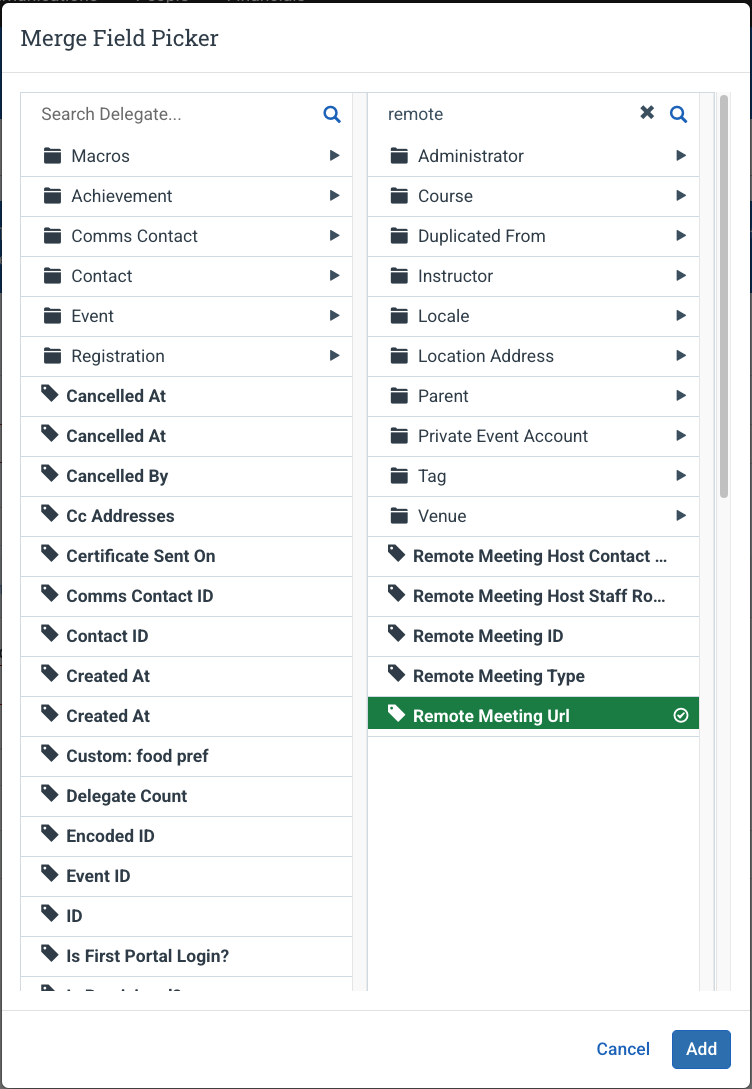
- In the editor toolbar, click Add Merge Field and select: Event → Remote Meeting URL
- Add other fields as needed (e.g., event title, start and end times). See Templates for more details.
Sharing Joining Information with Instructors
Outlook
When a Teams meeting is scheduled, it will appear on all assigned instructors’ calendars and automatically invite them to the meeting.
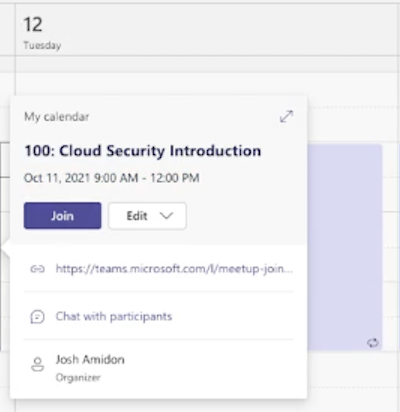
The invitation is sent from the organizer’s mailbox, so it reaches instructors outside your organization too. Exchange Online adds meeting requests to the recipient’s calendar as tentative by default; if an instructor has turned off automatic processing of meeting requests, the meeting appears on their calendar only after they accept it.
Optional: Instructor Communications
Similar to learner communications, you can set up communications to send details to instructors as well.
Troubleshooting
Sync errors appear in the Webhook Logs. Permission problems usually show as a 422 response with a message such as Invalid Microsoft Teams credentials: 403 Forbidden response on <url>. The URL in the message tells you which permission is missing.
| What you see | Likely cause | What to do |
|---|---|---|
401 in the message, on every event |
The client secret has expired or been replaced, or the Client ID or Tenant ID is wrong | Create a new client secret and send it to our support team |
403 on a URL containing /calendar/events |
The app can’t reach the organizer’s calendar: Calendars.ReadWrite isn’t consented, or the organizer’s mailbox is outside the limit your administrator has set |
Grant admin consent, or ask your administrator to include the organizer’s mailbox, then wait up to 2 hours |
403 on a URL ending /users/<email> |
User.Read.All isn’t consented |
Add User.Read.All (Application) and grant admin consent |
| An error saying a user does not have a Microsoft Active Directory account | The organizer’s email address in Administrate doesn’t match a user in your tenant | Correct the email on their Instructor record, choose a different Primary Instructor or Virtual Classroom Host, or use a service user |
| The sync succeeds, but instructors other than the organizer can’t admit people from the lobby or change meeting options | Instructors weren’t made co-organizers: the Teams application access policy isn’t set up or doesn’t cover the organizer, or OnlineMeetings.ReadWrite.All isn’t consented |
If you want co-organizers, add OnlineMeetings.ReadWrite.All (Application) with admin consent and grant the policy to the organizer (see Configuring the Integration), wait up to 30 minutes, then resync the event |
| Older events fail after you limited calendar access to a service user | Their meetings are still on instructors’ calendars | See Switching from instructor-owned meetings to a service user |
| An instructor isn’t seeing the meeting on their calendar | They have turned off automatic processing of meeting requests, or their mail system didn’t receive the invitation | Ask them to check their inbox for the invitation and accept it |
No meeting link on the event
If an event that should have a Teams meeting shows no Virtual Classroom Link, collect the following before contacting Support — it turns a vague report into a diagnosable one:
- the Event ID
- the exact time the meeting should have been created or updated
- the relevant entries from the Webhook Logs, including the response code and response body
- whether a meeting was actually created in Microsoft Teams, and its meeting ID if so
- any recent changes to your Microsoft tenant, the registered app, its client secret, its API permissions, limits on its mailbox access or your Teams application access policy
An event that has a Teams meeting ID but no Virtual Classroom URL usually means Teams created the meeting object but the join URL was not returned to Administrate — that combination points at the integration configuration or a transient Microsoft Graph failure rather than at the event setup. Also check the basics first: the event must have Microsoft Teams selected as its Virtual Classroom, and either a service user configured or a Primary Instructor whose email matches a Teams user.
FAQs
How does the integration choose who is the meeting presenter?
The Microsoft Teams integration creates a meeting by having a Microsoft user create the meeting on their Teams calendar and invite the instructors. By default, this Microsoft user is the event’s Virtual Classroom Host if one is set, and otherwise its Primary Instructor.
If you have a service user, that Teams user creates and organizes every meeting, and the event’s instructors are invited to it; no instructor needs a matching Microsoft account for the meeting to be created. See Choosing who organizes your meetings.
How does the integration match instructor accounts between Microsoft and Administrate?
The integration looks up the instructor as a user within your Microsoft organization by their email address, using the email stored on their Instructor record in Administrate. Without a service user, the organizer’s Administrate email address must match a user in your Microsoft Teams organization or the meeting cannot be created. Instructors whose email doesn’t match a user in your tenant are still invited, but can’t be made co-organizers.
Can Administrate read our email?
No. The integration has no Mail permissions. Calendars.ReadWrite does let the app read and write every calendar it has access to, although the integration only touches the meetings it creates. Your Microsoft administrator can limit it to the mailboxes of the users who organize meetings; see Narrowing the permissions.
Why does User.Read.All cover our whole directory?
Microsoft doesn’t allow directory reads to be restricted to a group, so this permission is tenant-wide in every setup. The integration uses it only to turn instructors’ email addresses into Microsoft user IDs.
Do we need the Delegated permissions from the earlier version of this guide?
No. The integration only ever signs in as the app, so Delegated permissions have no effect. You can remove User.Read.All (Delegated) and User.Read (Delegated).
What happens if we revoke admin consent, or remove someone from the app’s mailbox access or the Teams policy?
Syncs for the affected organizers stop working. Removing Calendars.ReadWrite or User.Read.All, or taking an organizer’s mailbox out of the app’s access, makes those syncs fail with a 422 in the Webhook Logs. Removing OnlineMeetings.ReadWrite.All or the Teams policy doesn’t fail the sync, but instructors are no longer made co-organizers.
What should I do after changing the Primary Instructor?
Reassigning instructors normally updates the Teams meeting automatically. If the meeting has not updated, force a resync from the event’s Add-ons menu using the Sync with MS Teams action (see Updating the Teams Meeting above). Without a service user, the meeting gets a new join link if the organizer changed; see Replacing an instructor safely.
How do events appear on the calendar?
Currently, the meeting presenter will have a single event created on their calendar for the duration of the first session on the Administrate event. A single Teams meeting link is tied to that calendar event. Calendar invites for all sessions can be attached to a communication template so learners can add all sessions to their calendar.