Purpose: This article explains how two-factor authentication (2FA) works in Administrate and how to configure and manage it for your Users.
Two-factor authentication (2FA) adds a second step to the Administrate login process by requiring a time-sensitive verification code in addition to a username and password, helping secure access to the Administrate TMS.
When you enable 2FA, it is enforced for all Users. The next time they sign in, they will be prompted to enroll in a 2FA method.
Configure 2FA
To enable two-factor authentication, open Control Panel, then select Login Configuration.
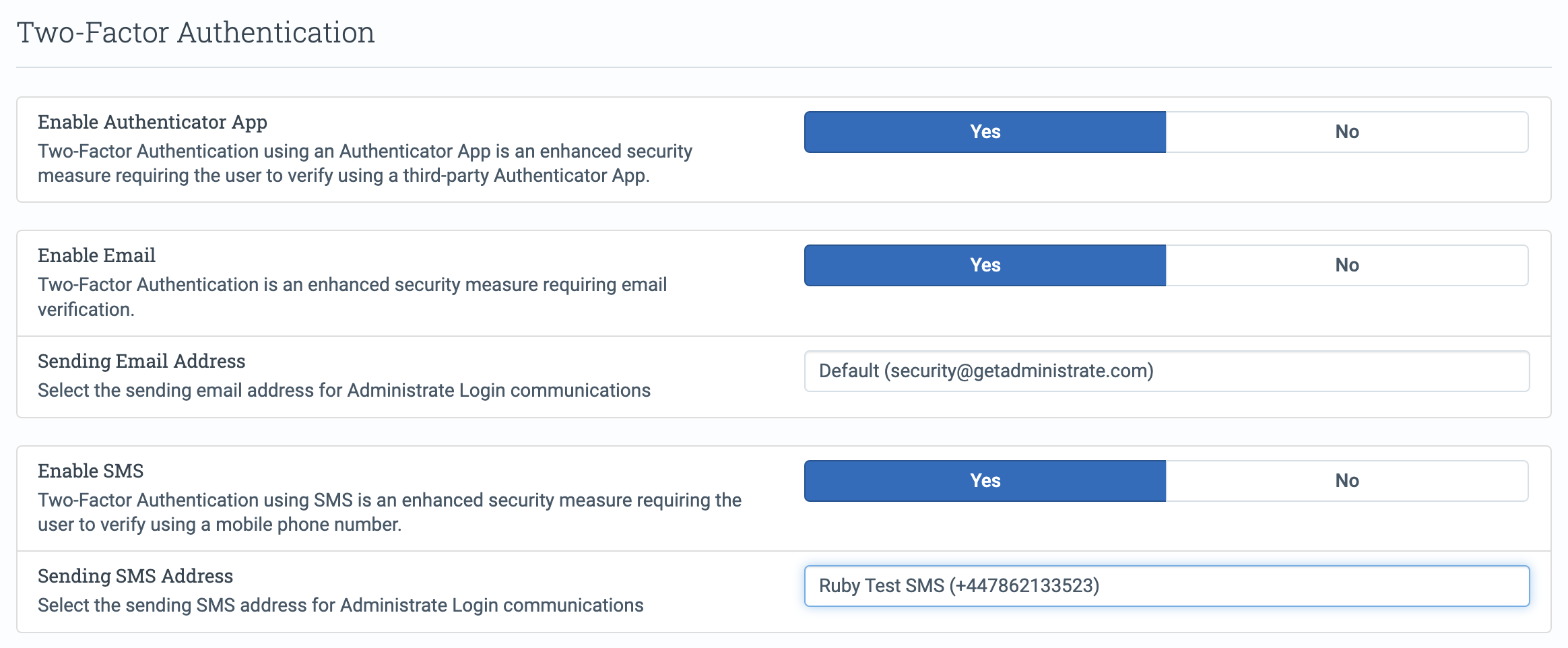
In Login Configuration, you can enable one or more 2FA methods:
- Authenticator app — Users enter a verification code generated by an authenticator app (for example, Google Authenticator).
- Email — Users receive a verification code at their email address.
- SMS — Users receive a verification code by text message.
You can allow Users to choose their preferred method at sign-in, or enforce a single method for all Users.
Considerations
If you enable Email 2FA, you can choose the sending address in Sending Addresses (Control Panel).
If you enable SMS 2FA, you must first configure an SMS sending number in Sending Addresses under the SMS tab. Once configured, it will be available in Login Configuration.
For a smooth setup and login experience, ensure each User’s email address and phone number are correct.
Log in with 2FA
The 2FA step occurs after the standard username and password login.
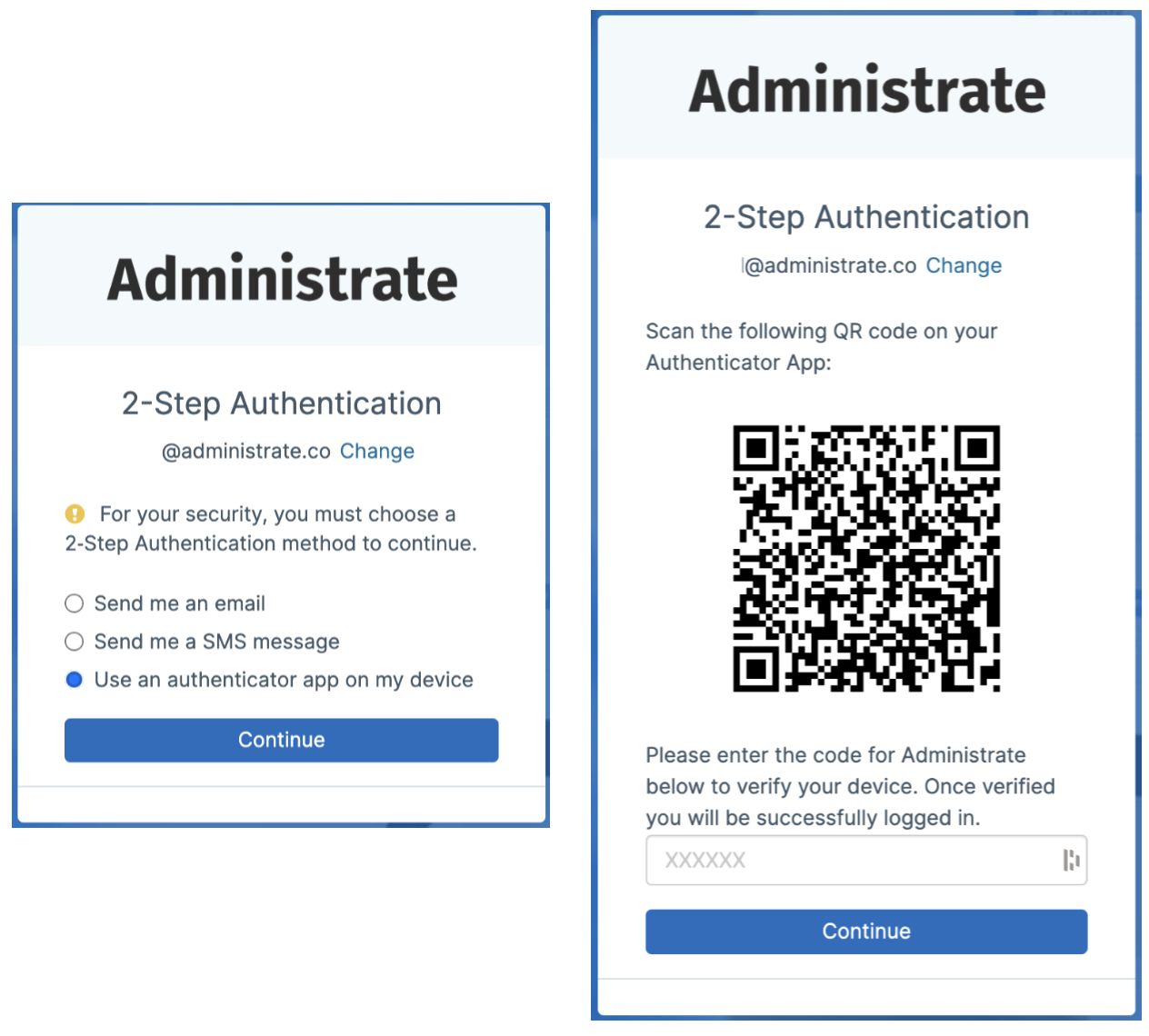
After entering credentials, Users are prompted to verify their identity with a code. The exact step depends on the method used:
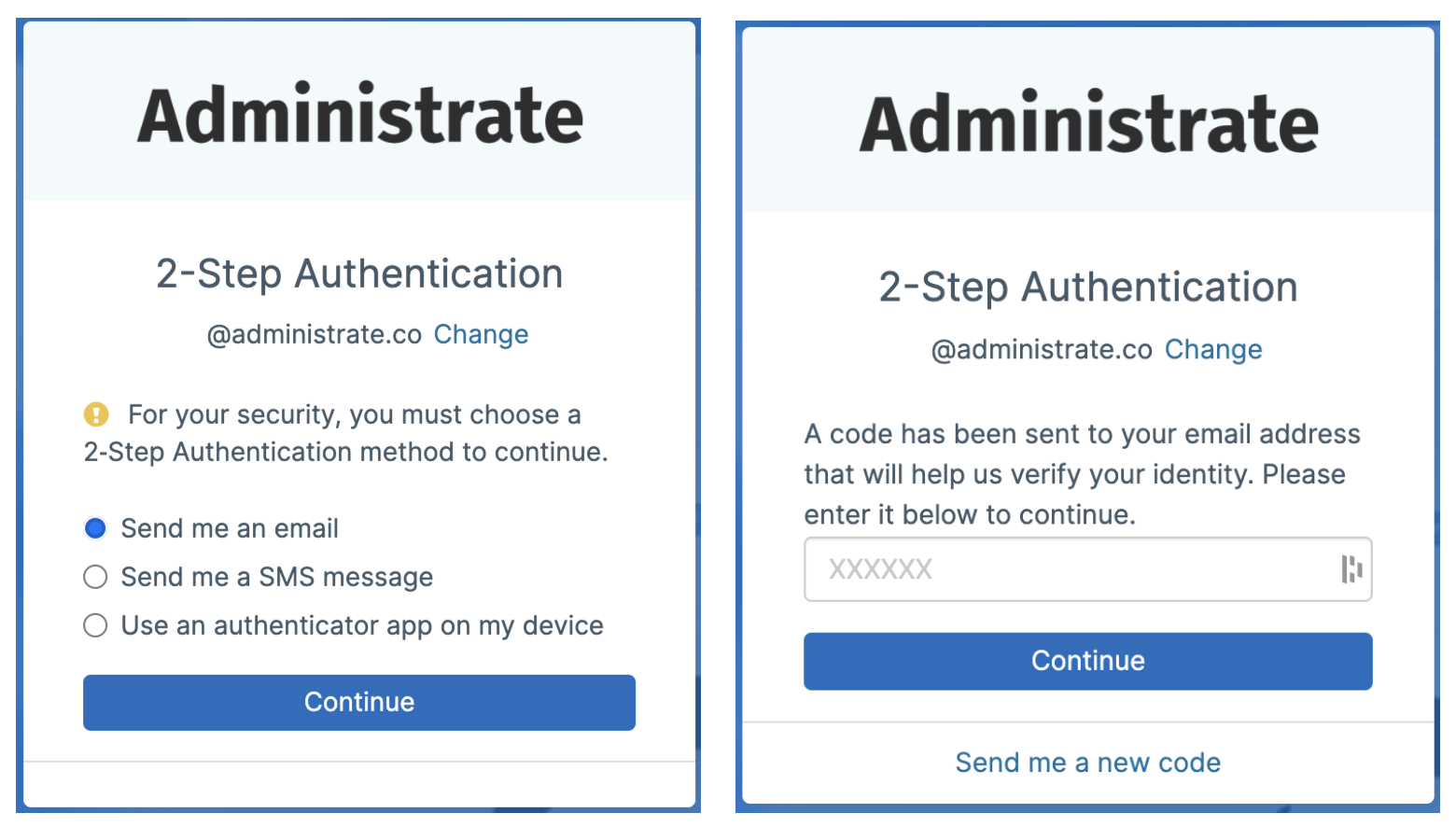
A verification code is sent to the User’s email address. Enter the code to complete sign-in. If the code expires, request a new one.
SMS
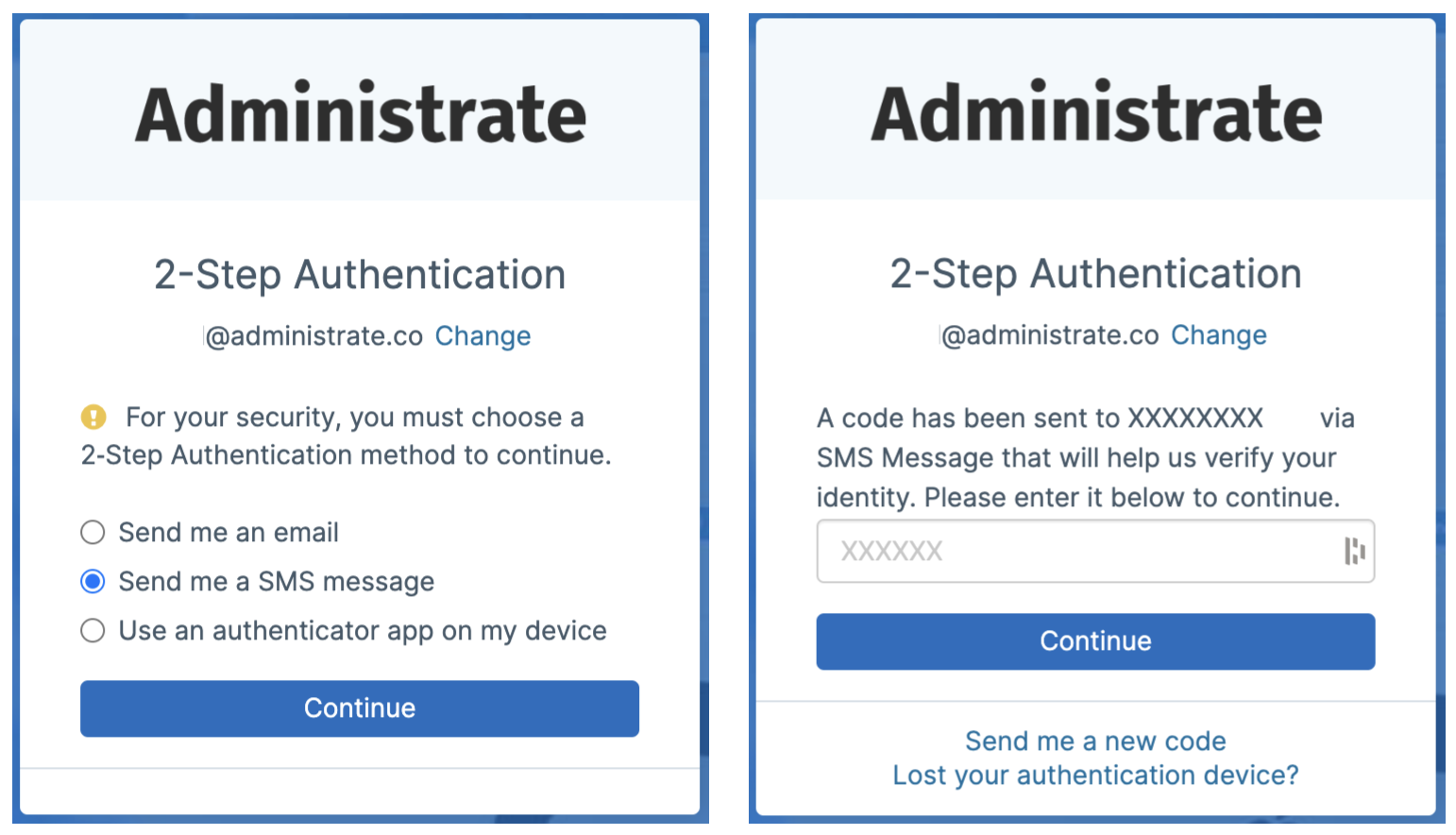
A verification code is sent to the User’s phone by text message. Enter the code to complete sign-in. If the code expires, request a new one.
Authenticator app
Users enroll once by scanning a QR code, then enter the app-generated verification code at sign-in.
Troubleshooting: user can’t log in
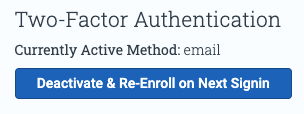
If a User cannot complete 2FA (for example, they no longer have access to their email, phone number, or authenticator app), a Super User can reset their 2FA enrollment:
- Open Control Panel and select Users.
- Select the User who cannot sign in.
- Click Deactivate & Re-Enroll on Next Sign-in.
The User will be prompted to choose and enroll in a 2FA method the next time they sign in.
If a User’s email address or phone number is incorrect, a Super User should update their details before the User attempts to sign in again.
Reporting
In the Reporting Engine, you can create a report using the User entity type to identify which 2FA method each User has enabled.