This release is going out this week.
Personnel Role Requirements let you set exactly how many people you need in each role and what qualifications they must have. When you book staff, you see only the people who qualify. The scheduler solves for all roles (not just instructors). And tasks now auto-assign to the right person based on their role, with options to reassign or cancel in bulk.
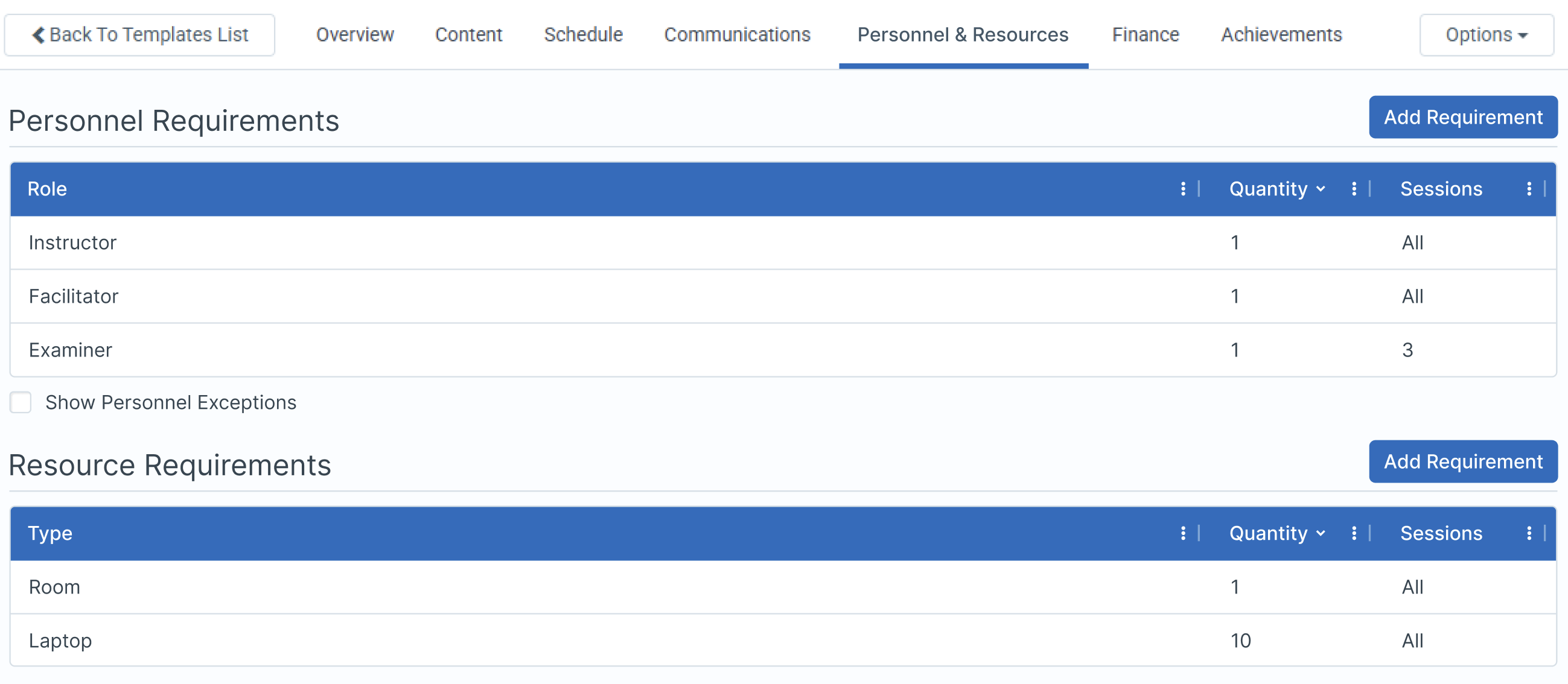
What Changed
- Role and Achievement (qualification) requirements on Course Templates and Events
- Full-role scheduling across all personnel types (not just instructors)
- Personnel Exceptions replacing Approved Instructors (your current setup is not affected)
- Role-based task assignment with auto-assignment
Role Requirements on Course Templates and Events
You can now define how many people you need in each Personnel role and what Achievements (qualifications) they must hold. Set these on a Course Template and every Event created from it inherits the rules. You can also override requirements on individual Events.
Achievements on Personnel (Qualifications)
Achievements now sit directly on Personnel records and act as the qualifications used in role requirements.
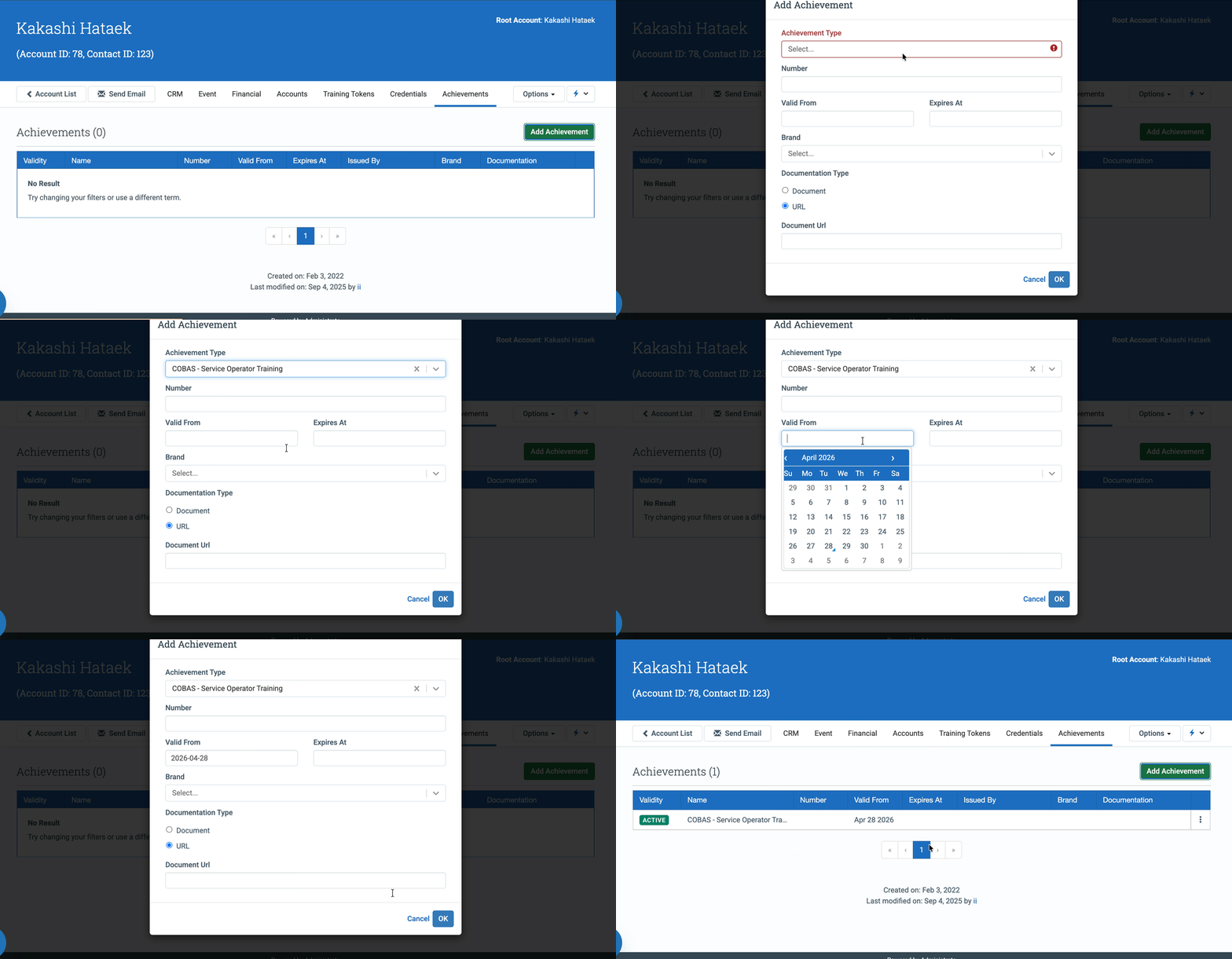
Add Achievements (e.g. “Service Training Operator”) to an Personnel record, then reference those Achievements as requirements on a Course Template or Event.
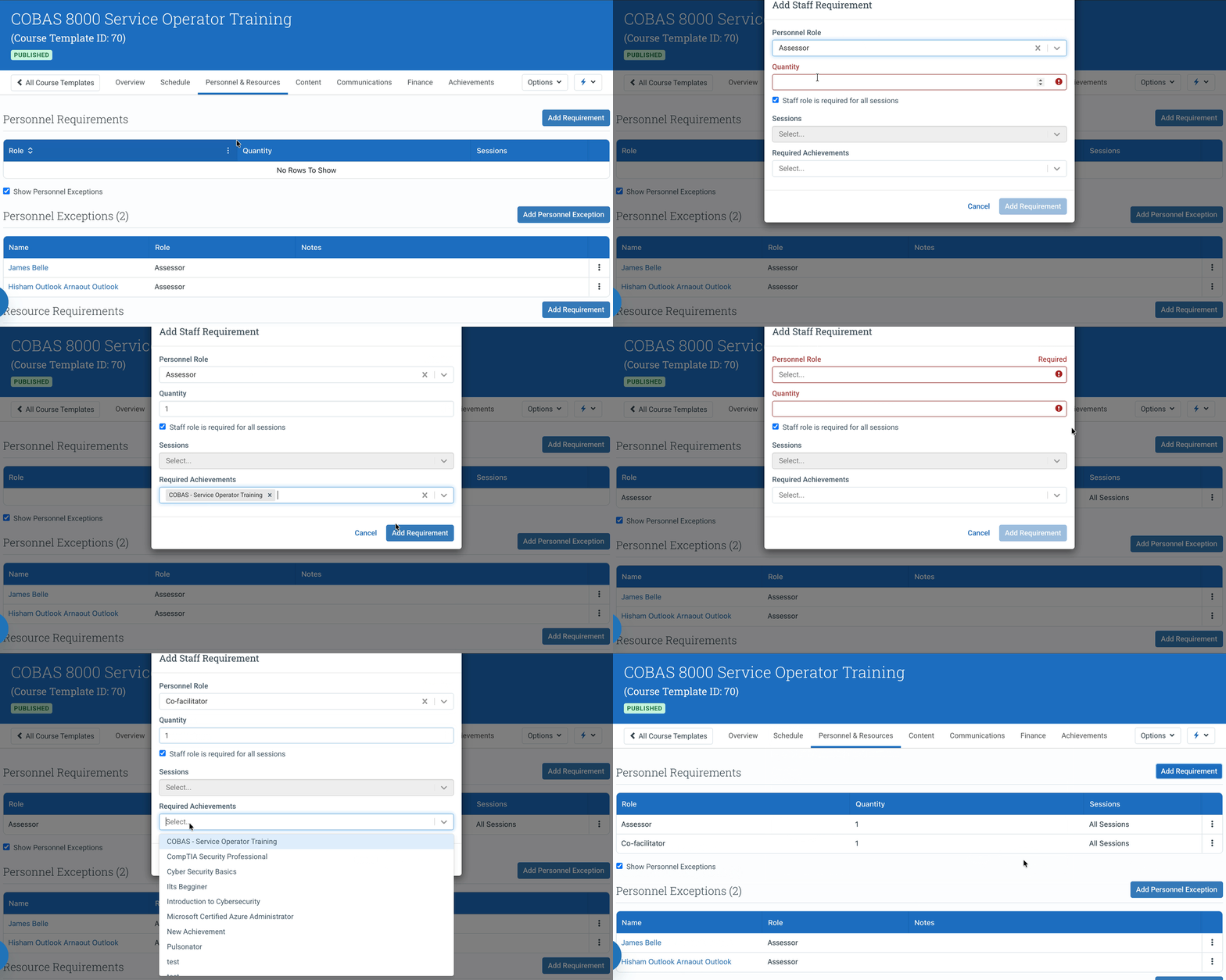
Example: A two-day first aid course needs 1 Lead Instructor with “Advanced First Aid Trainer,” 1 Co-Facilitator with “Basic First Aid Trainer,” and 1 Assessor with “Approved External Assessor.” Define that once on the template. Every event knows what it needs.
Filtered booking
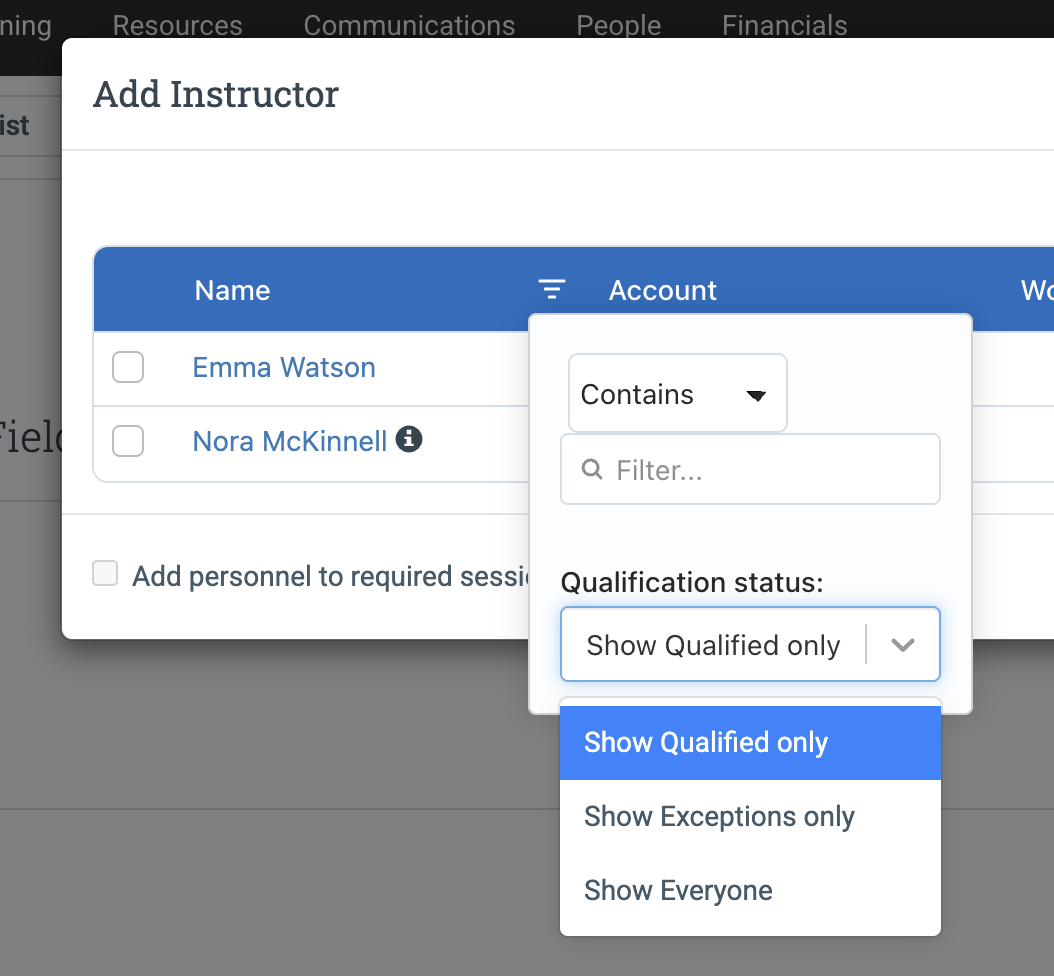
When you assign personnel to an event, the contact list filters to people who hold the required role and achievement. You see who qualifies without scrolling through your full contact list.
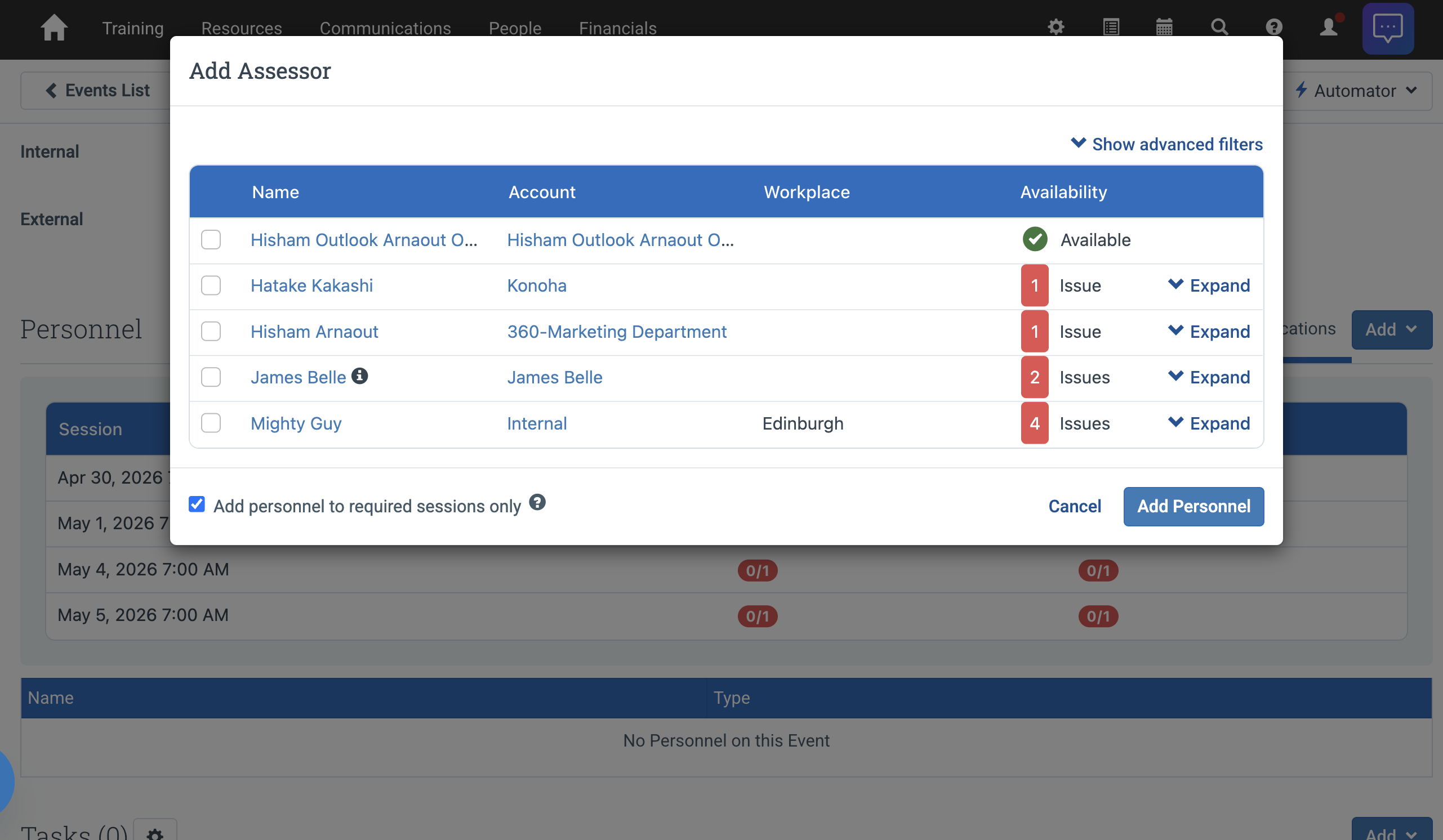
Assign instructors to events
The personnel table on the event shows a list of qualified instructors based on your role and achievement requirements. If you want to see only your Personnel Exceptions (previously known as Approved Instructors), filter on the name column and select the contacts you need.
Personnel exceptions
Personnel Exceptions replace the previous Approved Instructors feature. Instead of maintaining a list of who can deliver a specific course, exceptions work the other way around. The system filters contacts by role and achievement requirements automatically. Exceptions let you add specific people who should be eligible for booking even if they don’t meet those requirements.
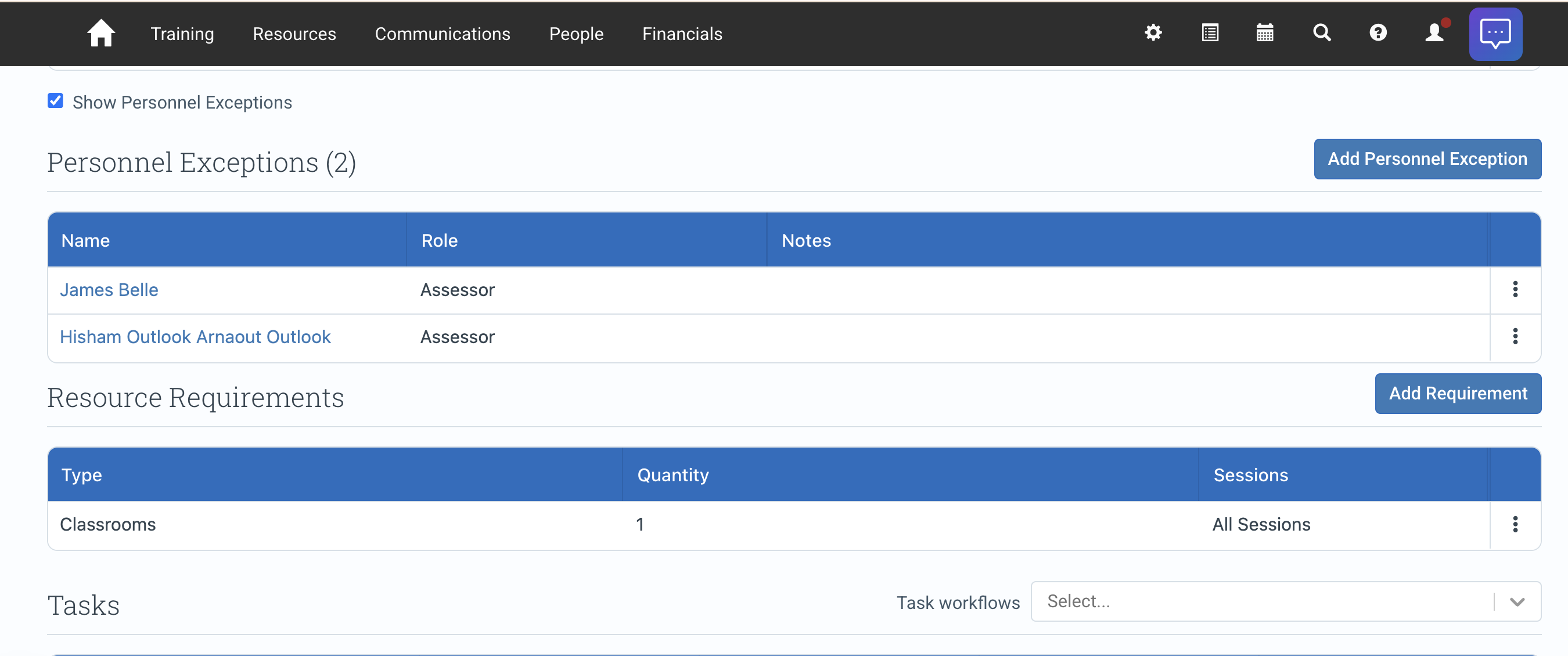
Your current setup is not affected. If you use Approved Instructors today, everything continues to work as it does now. The difference is you can start using achievement requirements to control who qualifies for any role, not just instructors.
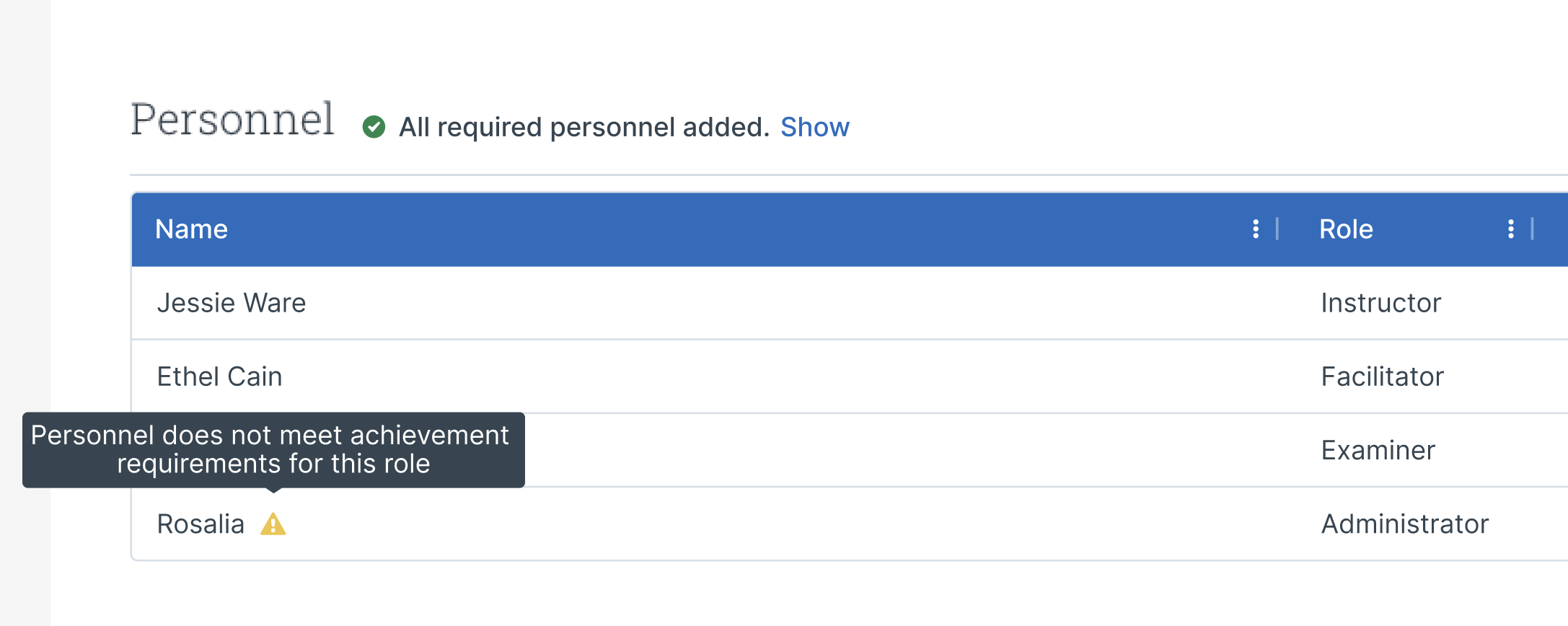
The system does not block you. If you book someone who falls short of a requirement, it flags the gap on the event and your dashboard so you always know where issues exist.
Scheduler: Full-Role Solving
Previously, the scheduler solved for Instructor assignments only. You handled all other roles manually.
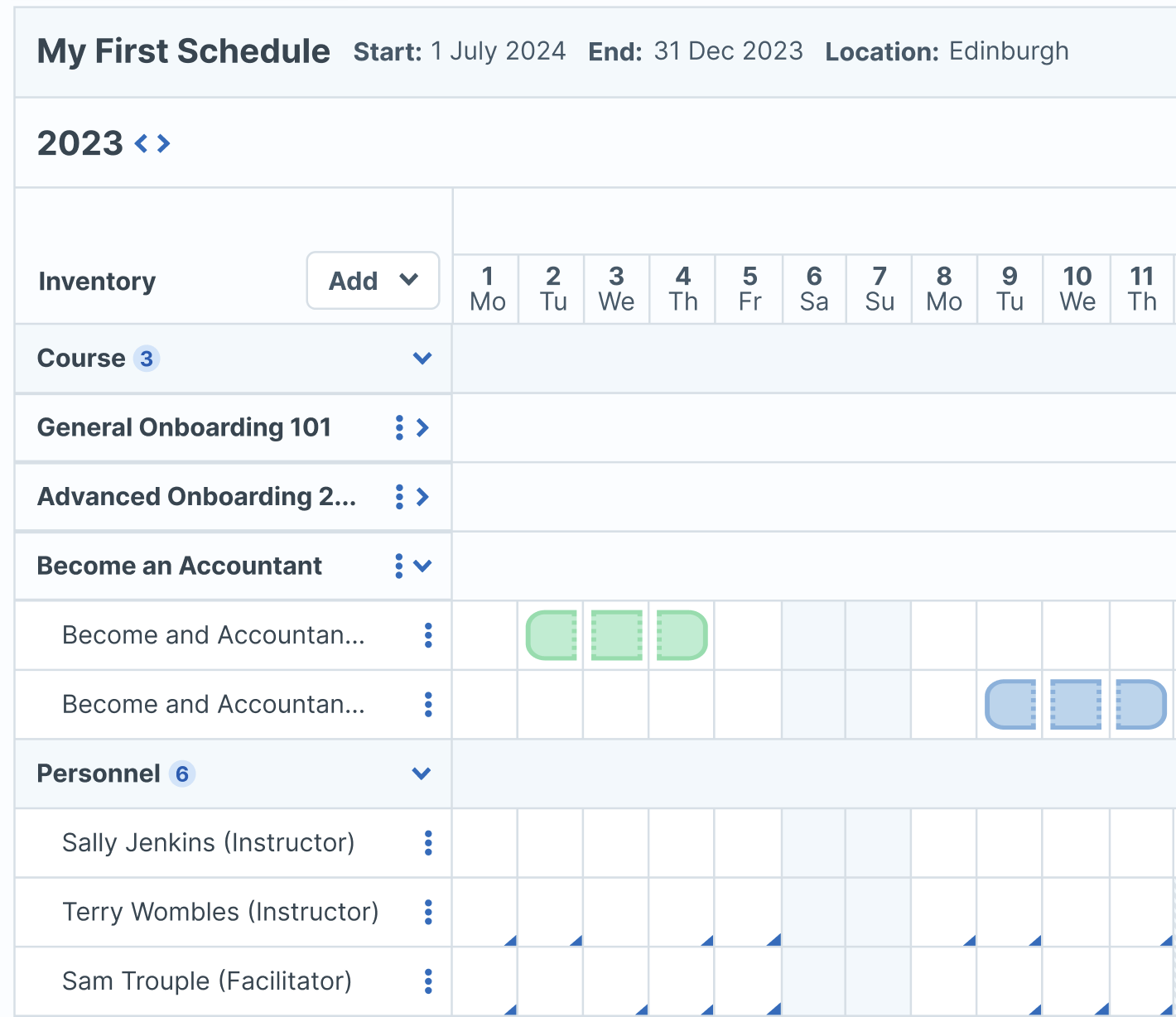
Now the scheduler accepts your full inventory of personnel roles and uses the requirements you set to create assignments across all of them. It checks availability and qualifications for every role type in a single solve.
Role-Based Tasks and Task Workflows
We reworked tasks and task workflows to support personnel roles directly.
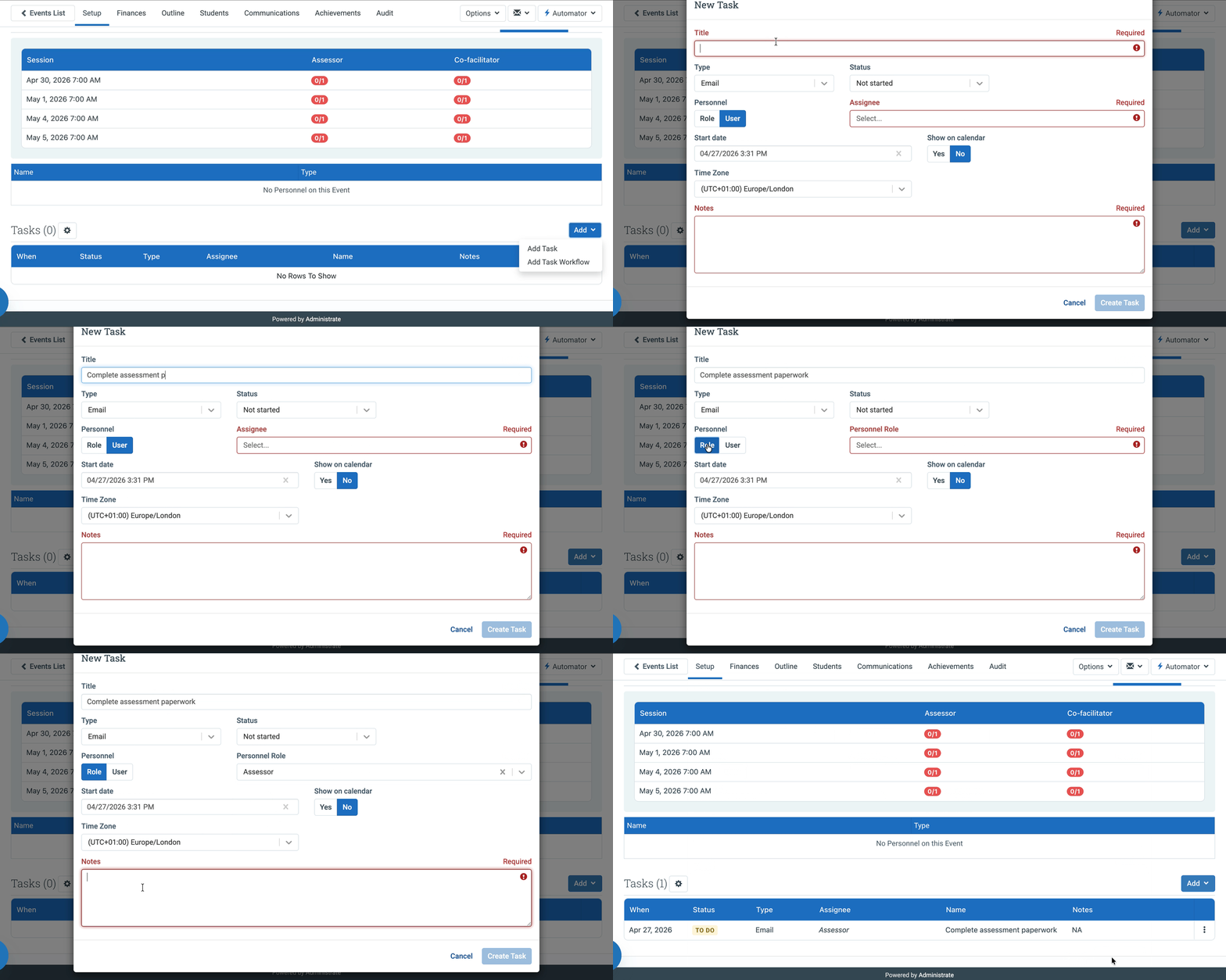
Assign tasks to a role, not a person
When you create a task or task workflow, you can assign it to a personnel role. “Send pre-course materials” goes to whoever holds the Lead Instructor role. “Complete assessment paperwork” goes to the Assessor.
Auto-assignments
When you fill a role on an event, tasks assigned to that role go to the person you booked. If the role is already filled when you add a new task, it defaults to the first person in that role.
Reassignment follows through
When you replace someone in a role, the system automatically moves the incomplete tasks to the next person you add fulfilling that role.
Bulk cancel on event cancellation
When you cancel an event, you get the option to cancel all tasks on that event in one action.
Getting Started
If you already use Personnel Roles, you can start setting requirements on your Course Templates and Events now.