PDF Branding allows you to configure the visual appearance of invoice PDFs to match your organisation.
Colour values must be entered as 6-digit hexadecimal codes. You can either type the value manually (for example, #FFFFFF) or use the built-in colour picker by selecting the field.
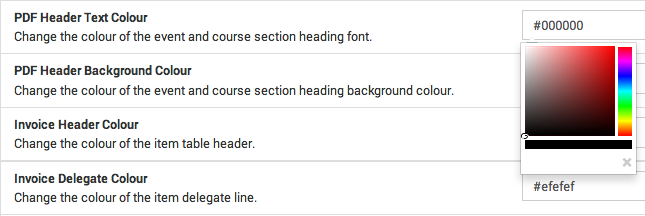
Built-in color picker
Event and Course PDFs (Legacy)
Event and Course PDFs are being deprecated. These settings remain available but are no longer recommended for new workflows.
The following settings affect legacy PDFs:
- Hide Course Code on PDF
- Show Footer Information on PDF
- Show Instructors and Locations on Multi-Session Event PDFs
- PDF Header Text Color
- PDF Header Background Color
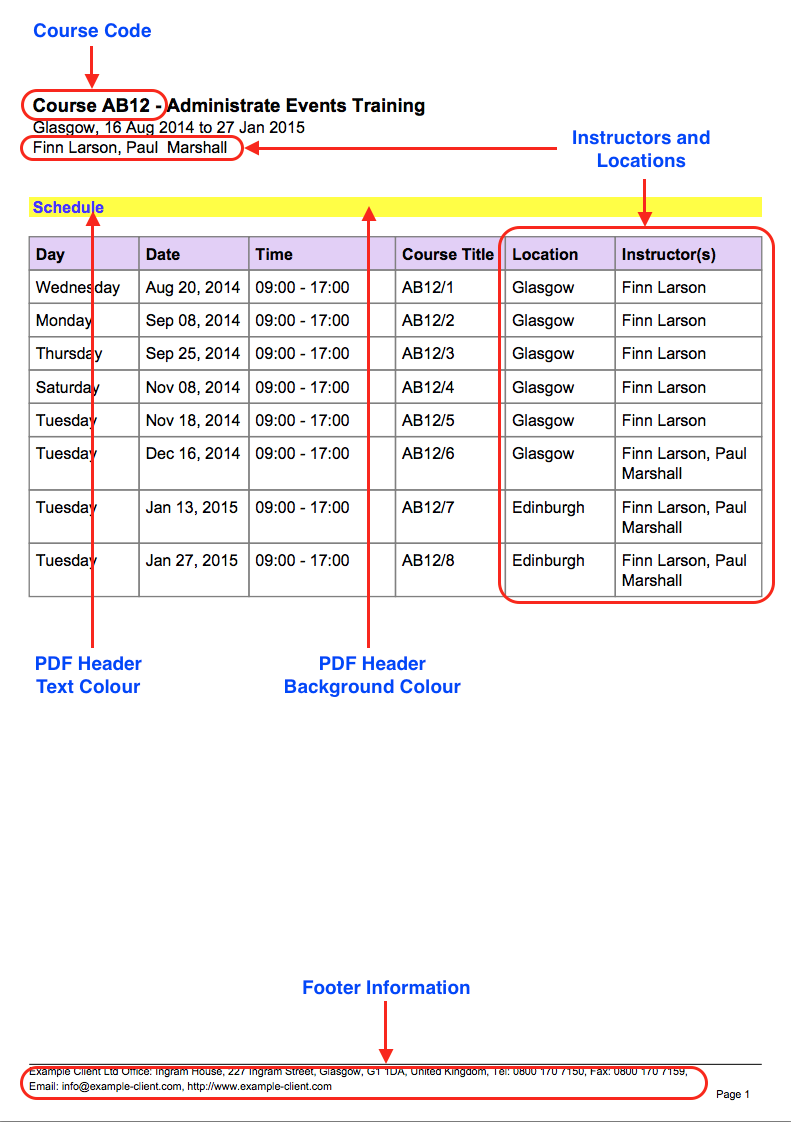
Example of a multi-session event PDF
Hide Course Code on PDF
Default: No
Controls whether the course code is shown before the course or event title.
Show Footer Information on PDF
Default: No
Displays company footer information on PDFs. Page numbers and divider lines are always shown regardless of this setting.
To update footer content, go to: Settings → Company Details → your account.
Show Instructors and Locations on Multi-Session Event PDFs
Default: Yes
Adds instructor and location columns to multi-session event PDFs. This does not affect single-session or compound event PDFs.
PDF Header Text Color
Default: #000000 (Black)
Sets the text color used in PDF headers.
PDF Header Background Color
Default: #FFFF00 (Yellow)
Sets the background color for PDF headers.
Invoice Colors
You can customize the appearance of invoice PDFs using the following settings:
- Invoice PDF Header Background Color
- Invoice PDF Delegates’ Background Color
- Invoice PDF Events’ Background Color
- Invoice PDF Header Text Color
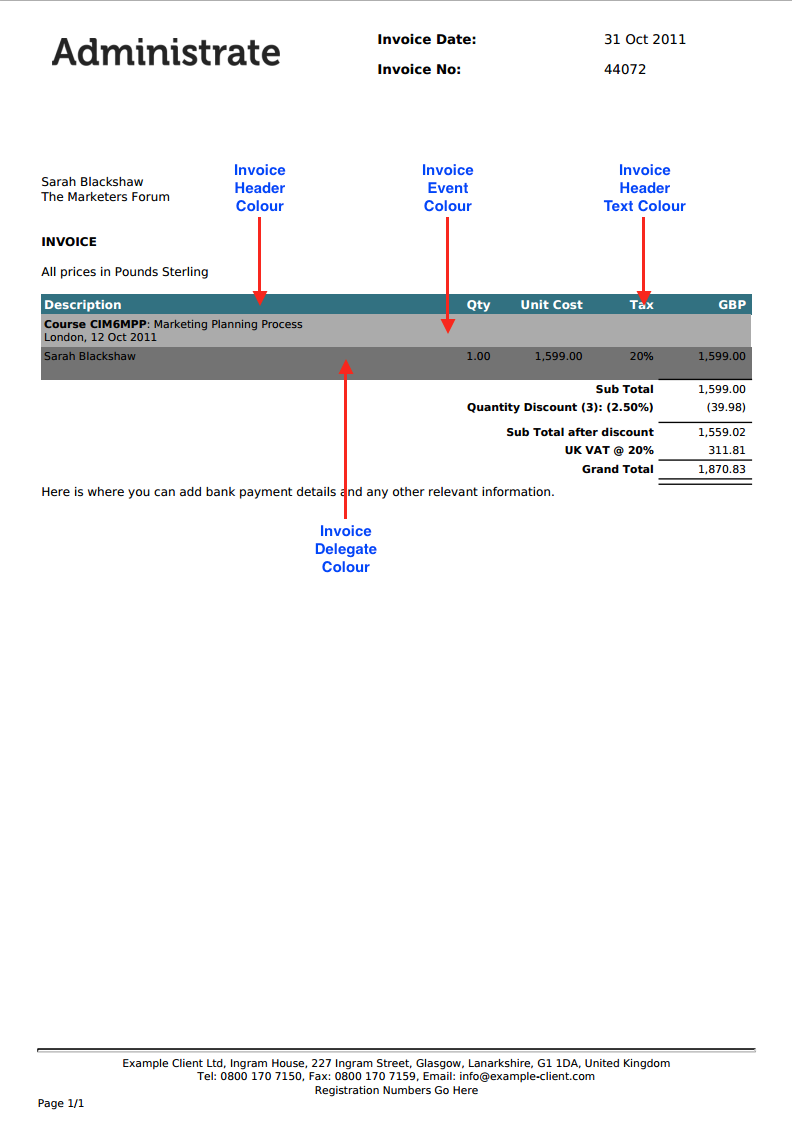
Annotated invoice example
Invoice PDF Header Background Color
Default: #327181
Sets the background color for the invoice header row (for example, Description, Qty, Unit Cost, Tax).
Invoice PDF Delegates’ Background Color
Default: #EFEFEF (Light Grey)
Sets the background color of the delegates section.
Invoice PDF Events’ Background Color
Default: #EFEFEF (Light Grey)
Sets the background color of the events section.
Invoice PDF Header Text Color
Default: #FFFFFF (White)
Sets the text color used in invoice headers.