Purpose: Use this article to review Event history and operational traceability from the Audit tab.
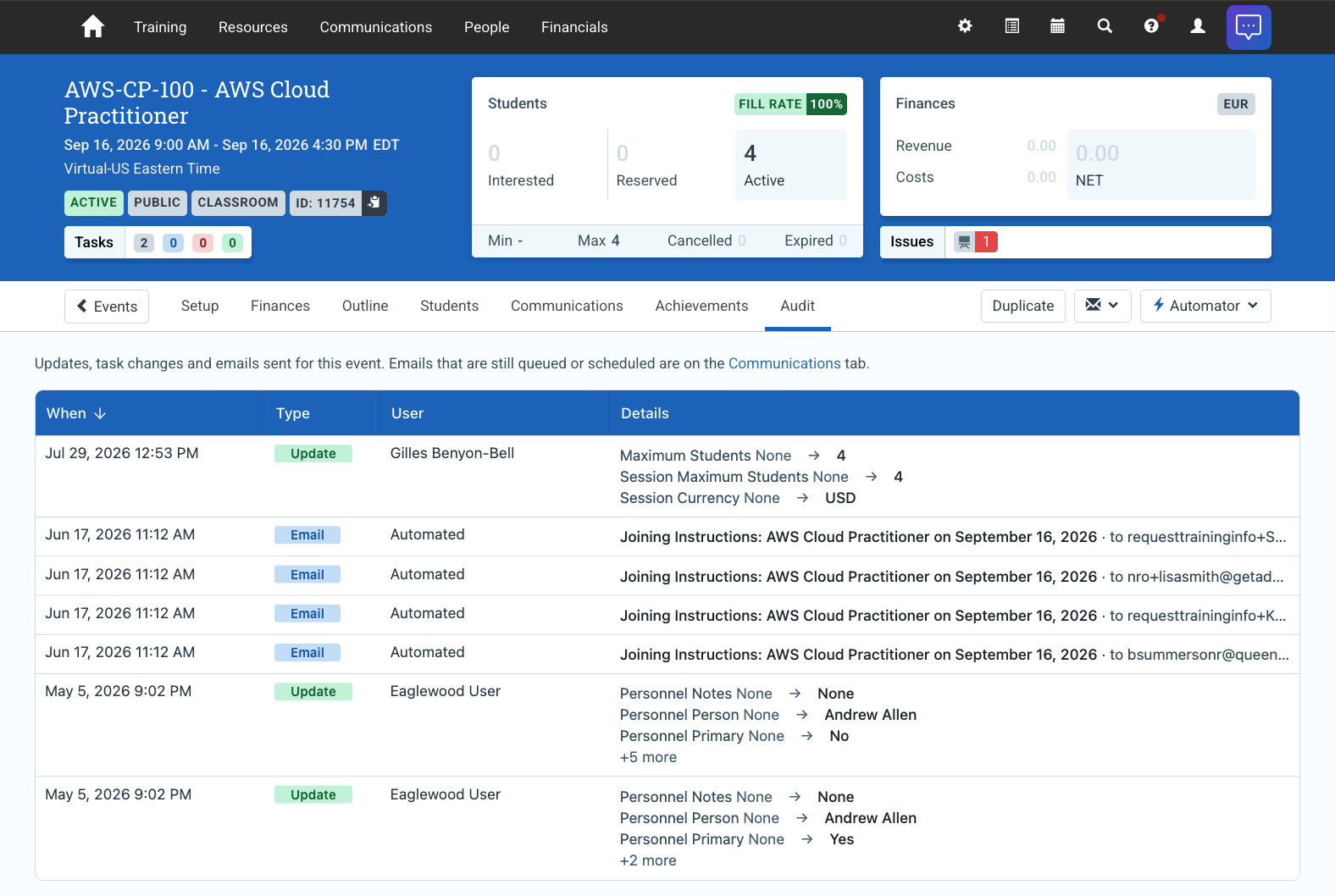
The Audit tab provides a chronological history of changes made to an Event, including updates performed by users and automated processes.
Administrators commonly use the Audit tab to investigate operational issues, confirm when changes occurred, and review Event activity history.
For overall Event navigation and lifecycle guidance, see Understanding the Event Screen.
In this article
- Audit tab
- What the audit log shows
- When to use the Audit tab
- Operational investigation workflow
- Best practices
- Related guides
Audit tab
The Audit tab provides a chronological history of changes made to the Event.
Audit records help administrators understand how an Event has changed over time and identify when specific updates occurred.
What the audit log shows
- changes to Event configuration
- updates to schedules or sessions
- changes to learner participation records
- system or user actions that affected the Event
When to use the Audit tab
Administrators typically review the audit history when:
- investigating unexpected changes to an Event
- confirming when a configuration update occurred
- reviewing the history of a booking or attendance change
- reviewing operational activity during Event delivery
Operational investigation workflow
The Audit tab is commonly used alongside the Communications tab when diagnosing operational issues.
For example, administrators may:
- review communication delivery history
- confirm whether Event schedules or booking states changed
- identify when operational updates occurred
- verify which actions affected the Event
Best practices
- Use the Audit tab when investigating unexpected operational behavior.
- Review audit history before troubleshooting communications or scheduling issues.
- Use audit records to confirm when changes occurred during Event setup or delivery.
- Review Event history before making major corrective updates to live Events.