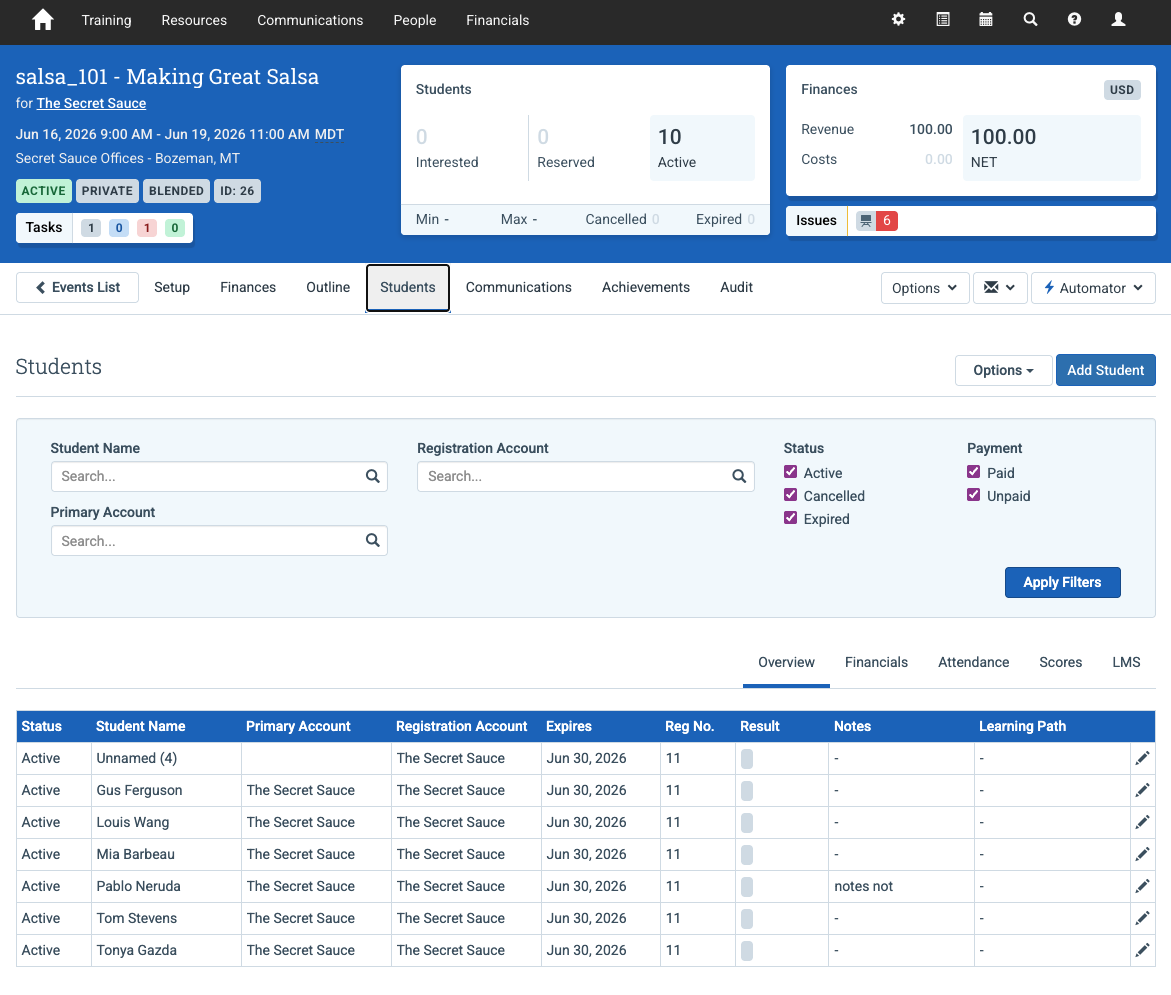
Purpose: Use this article to manage learner participation from the Students tab on an Event.
The Students tab is where administrators manage Event participation, attendance, results, learner status, and completion activity for a scheduled delivery.
Most operational learner management happens here after learners are enrolled onto an Event.
For overall Event navigation and lifecycle guidance, see Understanding the Event Screen.
In this article
- What the Students tab controls
- What you can do in the Students tab
- Typical participation management workflow
- Managing learners during a live Event
- Best practices
- Related guides
What the Students tab controls
- Event bookings and participant lists
- booking and participation status
- attendance records
- scores, results, and completion outcomes
- learner feedback where enabled
What you can do in the Students tab
Add learners to an Event
Administrators can enroll learners directly onto an Event from this tab. This creates a booking for the learner and links their participation record to the Event.
Typical enrollment steps:
- Open the Event.
- Navigate to the Students tab.
- Select the option to add a learner.
- Search for the learner’s Contact record.
- Confirm the booking and save.
Once added, the learner appears in the Event participant list and their booking status can be managed from this tab.
For additional enrollment workflows, see Add students to an Event.
Review booking status
Each learner has a booking status that reflects their relationship to the Event. This allows administrators to see which learners are confirmed, cancelled, transferred, or otherwise no longer participating.
Monitoring booking status helps ensure the Event participant list accurately reflects the learners expected to attend.
Record attendance
Attendance is typically recorded during or after the Event. Recording attendance confirms which learners actually participated in the delivery.
Administrators commonly record attendance:
- during the Event
- after the final session
- when confirming completion outcomes
Attendance records contribute to reporting, completion tracking, and achievement eligibility.
For more detailed attendance workflows, see Recording Attendance for an Event.
Record results or scores
If the Event uses assessments or scoring templates, results can be recorded for learners from this tab. These results may determine completion status or trigger achievements depending on how the course is configured.
Results may include pass/fail outcomes, numeric scores, or other evaluation data depending on the course design.
Collect learner feedback
If feedback collection is enabled for the Event, learner feedback can be recorded or reviewed through the Students tab.
This information helps organizations evaluate training delivery and learner satisfaction.
Typical participation management workflow
- Add learners to the Event.
- Monitor booking status as registrations change.
- Record attendance during or after delivery.
- Enter scores or completion results.
- Review participation records for accuracy.
Managing learners during a live Event
Note
Participation records affect reporting, achievements, and learner progress tracking. Ensure attendance and results are recorded accurately before closing or completing an Event.
During a live Event administrators may need to:
- add late registrations
- cancel or move bookings
- record attendance changes
- update results after assessment review
Best practices
- Confirm bookings before the Event begins.
- Record attendance as soon as possible after delivery.
- Review results and completion data before closing the Event.
- Ensure participation records match actual learner attendance.
- Review learner communications after major enrollment or scheduling changes.