Contacts are the people associated with your Accounts. Contacts can attend your Events, receive communications, or be members of your staff.
You can view a list of Contacts by navigating People → Contacts, and refine results using the Filter System.
To control which Contact fields appear or are required, see Contacts – Settings.
Alternatively, search for a Contact using  in the menu bar.
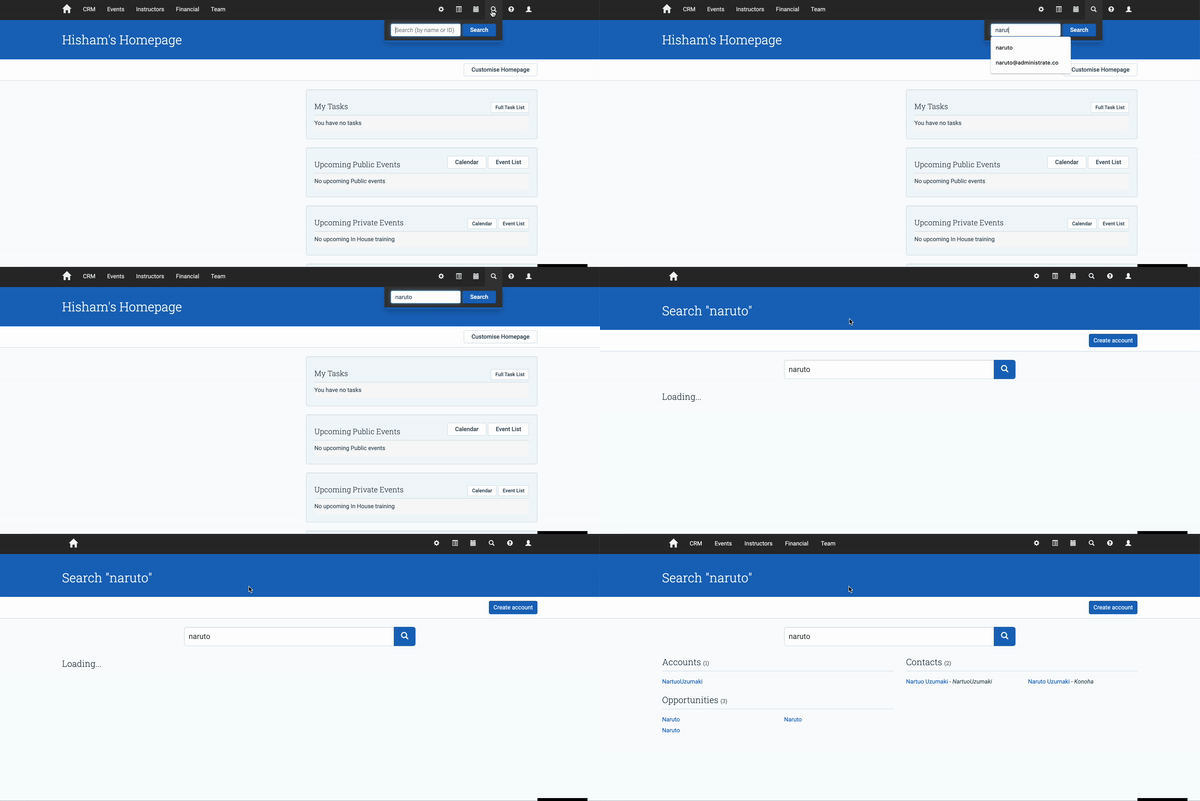
If the Contact is the person behind an Individual Account, and that Account is their primary Account, opening their Contact record takes you to that Account’s screen instead, which holds the same information in one place. A brief loading screen appears while Administrate works out which screen to show. If the Individual Account is only a secondary association on the Contact, you stay on the Contact screen.
The Contact screen combines information about the Contact in a single place, including:
- Personal details, including LMS username
- Contact Job Roles
- Current Events and Event History
- Bookings
- Tasks and Documents
- When they’ve logged into the LMS Student Portal
- Any Achievements they have been issued
On this page
- Terminology
- Create a Contact
- Edit a Contact
- Delete a Contact
- Merge Contacts
- Credentials
- Achievements
- Accounts
- Audit
Terminology
Common terms include:
| Term | Meaning |
|---|---|
| Contact Identity | Set the Contact’s identity type, such as Staff, Instructor, or Administrator. |
| Staff | An employee of your company. Emails between Staff Contacts are not synced in the IMAP Email Integration. |
| Administrator | Administers your Events. These Contacts are counted as Event Personnel. |
| Instructor | Qualified to instruct your Events. |
| Left Company | Has left the Account. This grays out the Contact on the Account screen. |
| Unsubscribe from Communications | The Contact requested no communications. They can be filtered out by Marketing Lists, and Communication Triggers respect this setting. |
| No 3rd Party Mail | The Contact requested not to be contacted by a third party. |
| Marketing Contact | Should receive marketing communications. You may not want to send these to every Contact on an Account. |
Create a Contact
Note: Every Contact must be associated with an Account. You typically create a Contact from the Account screen.
- Click in the top right of the black menu bar.
- Enter the name of the Account you want to add the Contact to.
- Select the Account from the results.
- In the Contacts table, click New.
- Enter the Contact details.
- Click Save.
Your Contact has now been created.
Edit a Contact
- Click in the top right of the black menu bar.
- Enter the name of the Contact you want to edit.
- Select the Contact from the results.
- In the Contact Details section, click Edit.
- Edit the details as required.
- Optional: under Options, click Move to move the Contact to a different Account, or Fill Address from Account to update the Contact’s address to match the Account.
- Click Save.
Your Contact has now been updated.
Delete a Contact
Note: You can’t delete Contacts that have history attached, such as Event Registrations, Bookings, or open Tasks. Delete or close those dependencies first.
- Click in the top right of the black menu bar.
- Enter the name of the Contact you want to delete.
- Select the Contact from the results.
- In the Contact Details section, click Options, then Delete.
Your Contact has now been deleted.
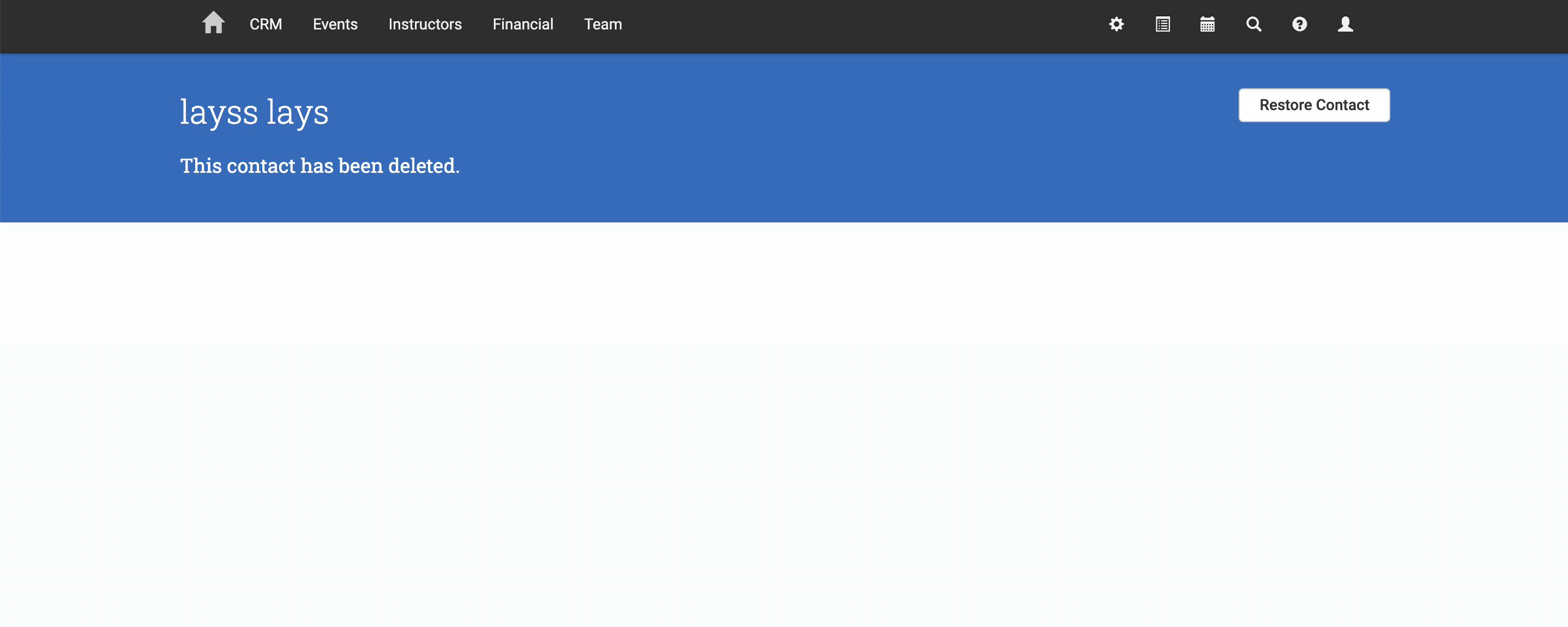
If you need to restore a Contact and you have access, visit the Contact URL directly, then use Restore Contact.
Merge Contacts
If duplicate Contacts exist, you may need to combine them so their information and history are stored in one place.
If one Contact has no dependencies, you can delete it. If both have history, merge them: open one and select Options > Merge Contact, use Review on the possible-duplicates banner, or start from the Potential Contact Duplicates list. You choose which Contact to keep and which values win, and the other Contact’s records move to it before it is deleted.
Merging needs the Contact - Merge permission in addition to Contact edit and delete. See the Merge Tool Guide for the full walkthrough.
Credentials
From this section, you can:
- set up credentials for a student to access the student portal
- edit the account username
- send a password reset email
- remove credentials
- block access to the portal
Block Access
If you want to block a student’s access to the portal:
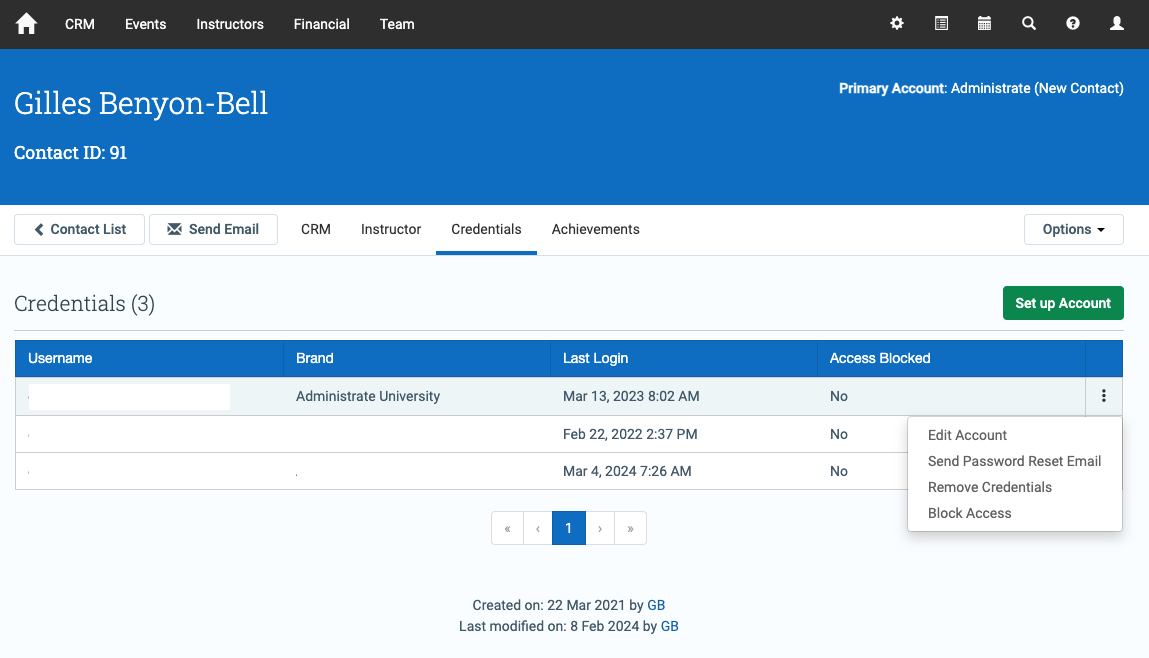
- Click the ellipsis
 in the Credentials table.
 - Click Block Access.
- When prompted, click OK to confirm.
- The student will no longer be able to access the portal.
Restore Access
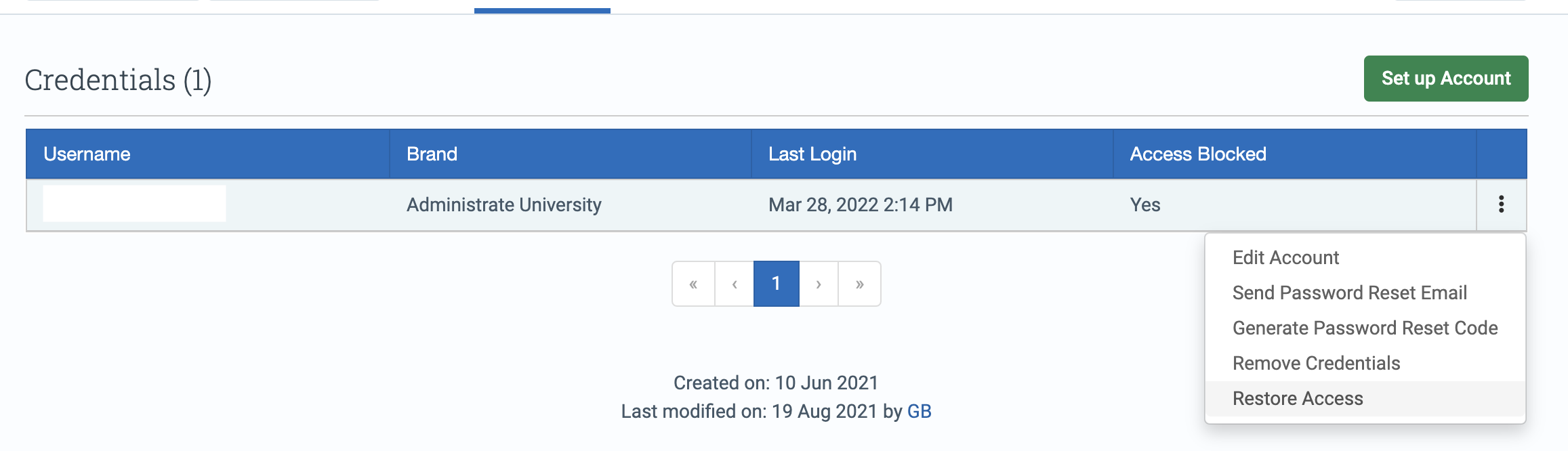
To restore access, select Restore Access in the Credentials table.
Remove Credentials
If you want to remove a student’s credentials without blocking access:
- Click the ellipsis in the Credentials table.
- Click Remove Credentials.
- When prompted, click OK to confirm.
- The student’s credentials will be removed.
After removing credentials, an admin can set up new credentials for the student. If your instance supports self-registration, the student may also be able to set up their own credentials.
Achievements
A Contact can be issued an achievement to track successful completion or participation in an Event, a professional certification, or another learning milestone.
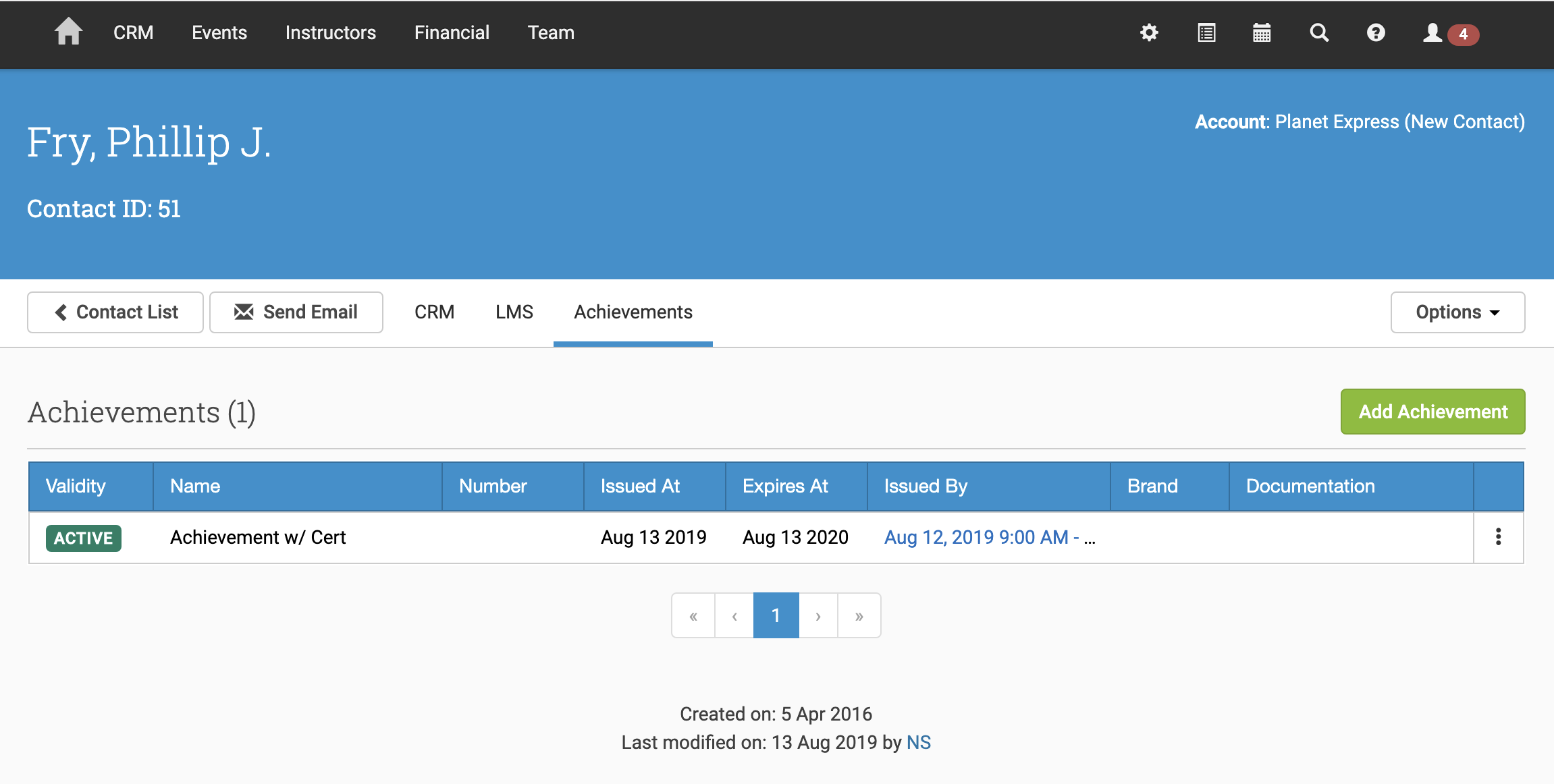
Achievements include:
- Validity: Active, Expired, or Revoked
- Name: The type of achievement issued
- Number: A unique identifier
- Issued At: When the achievement was issued
- Expires At: When it expires, if applicable
- Issued By: The Event or Learning Path that issued it, if generated automatically
- Brand: Where the learner can view the achievement
- Documentation: Supporting files, often a PDF or image such as a certificate
Reissuing Certificates
To reissue certificates, find the related Achievement, click the ellipsis on the right, then select Refresh Documents.
Accounts
You can associate a single Contact with multiple Accounts to better track training progress, interactions, and sales across different contexts while maintaining a unified Contact record.
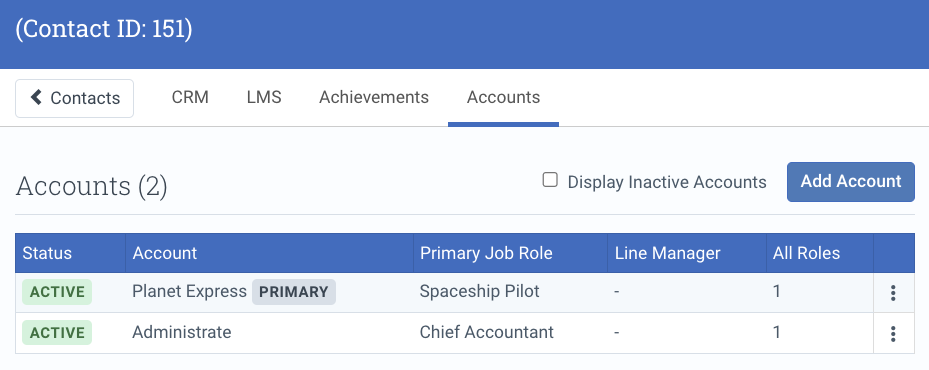
The Accounts list shows all Accounts the Contact is linked to. A primary Account pill indicates the root Account.
- Assign a Contact to multiple Accounts: click Add Account to create additional associations
- Change primary Account: from the kebab menu, select Make Primary
- Contacts on lists: Contacts appear on Contact lists for every associated Account
- Primary Contact: you can mark a Contact as a Primary Contact on any Account they belong to
- Active vs inactive Accounts: inactive Accounts were relevant in the past but are not tied to current activity
- Remove association: use Delete to remove the Contact association from an Account
Audit
To see the history of a Contact, open it and select the Audit tab. Anyone who can view the Contact can open its history, and sees every entry on it.
Each row shows When the change was made, its Type (a change to the Contact or to one of its tasks), the User who made it and the Details. Filter by Type to see only one kind. The tab lists:
- saves to the Contact, with each field’s value before and after
- merges into this Contact, naming the merged and deleted Contact and showing its Contact ID
- pairs marked Not a Duplicate, and marked as duplicates again
- changes to the Contact’s tasks
A merge appears on the kept Contact’s tab. The merged and deleted Contact’s own history is not moved to it. Opening the merged Contact’s URL redirects to the kept Contact.
If a value is blank, no value was entered, or no value existed previously.