Purpose: Use this article to configure the Schedule area of a Course Template.
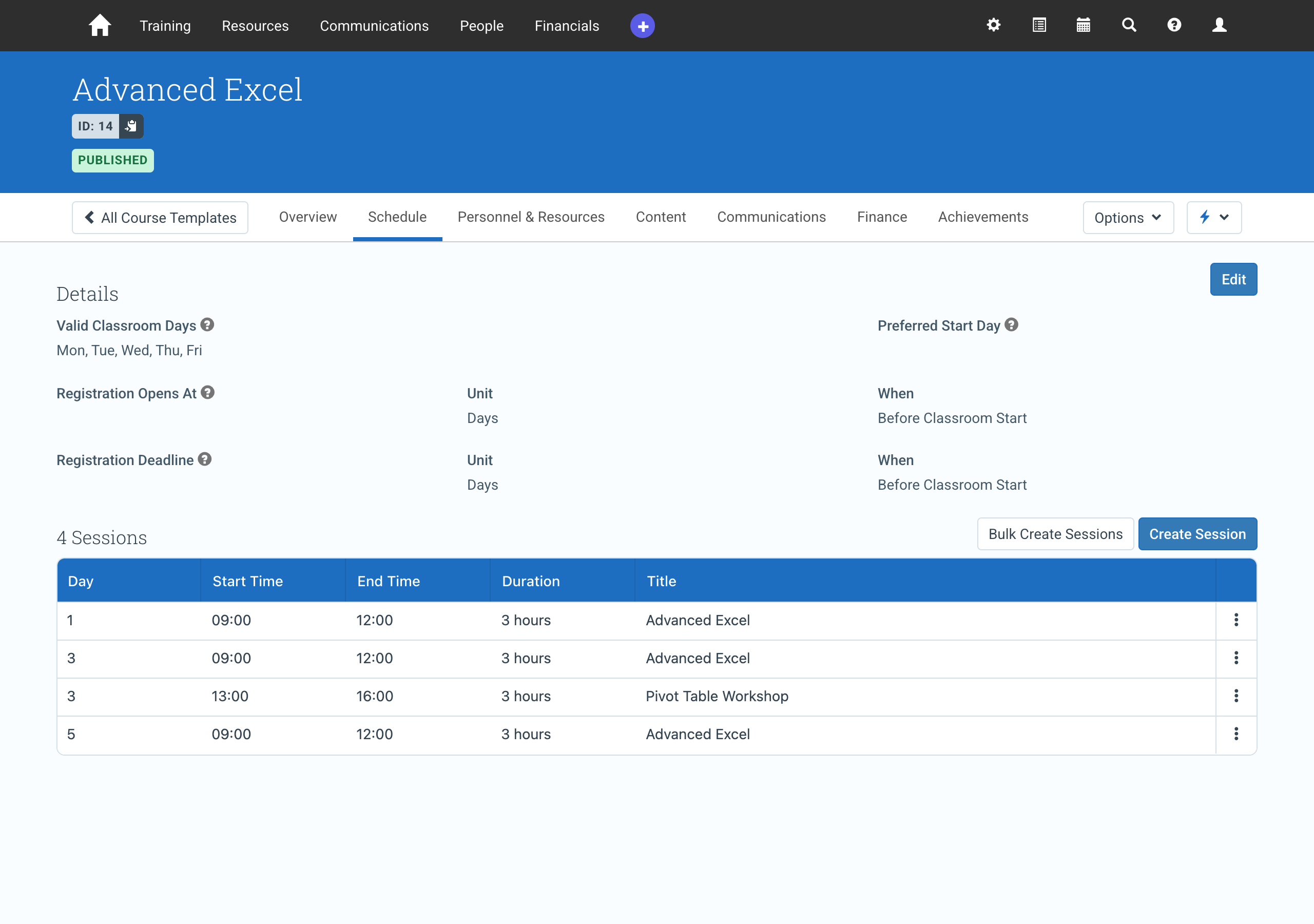
The Schedule tab defines the standard delivery pattern for a course. It is where you choose which days of the week classroom sessions can run on and set up the sessions that make up the course.
The schedule defined here acts as the structural template for Events created from the Course Template. When a new Event is scheduled, these sessions are copied into the Event and placed on real dates, so administrators only need to confirm the delivery plan.
For the broader Course Template model and navigation across all tabs, see Understanding Course Templates.
In this article
- Quick Training Video
- What the Schedule tab controls
- How course days work
- Setting valid classroom days
- Creating sessions in bulk
- Adding or editing a single session
- How sessions are placed on Event dates
- Template schedule vs Event schedule
- When to update the schedule
- Best practices
- Related Course Template guides
Quick Training Video
What the Schedule tab controls
- the days of the week classroom sessions can take place on (Valid Classroom Days)
- the start day highlighted when creating Events (Preferred Start Day)
- when registration opens and closes (Registration Opens At and Registration Deadline)
- the sessions that make up the course, including the course day each one runs on and its start and end times
How course days work
Each session has a Day: the day of the course it runs on. For example, on a Monday to Friday course with sessions on Days 1, 3 and 5, an Event starting on a Monday runs those sessions on Monday, Wednesday and Friday. Add a second session on Day 3 and it also runs on Wednesday.
Course days are counted over the template’s Valid Classroom Days only. Days of the week that aren’t valid are skipped:
| Valid Classroom Days | Day 1 | Day 2 | Day 3 | Day 4 | Day 6 |
|---|---|---|---|---|---|
| Mon–Fri | Monday | Tuesday | Wednesday | Thursday | the following Monday |
| Mon, Wed, Fri | Monday | Wednesday | Friday | the following Monday | the following Friday |
This means:
- The Day you enter is the day the session runs.
- You can put several sessions on the same day, such as a morning session and an afternoon workshop on Day 3.
- You can leave gaps between days. A course with sessions on Days 1, 3 and 5 has no sessions on Days 2 and 4.
Setting valid classroom days
- Open the Course Template and go to the Schedule tab.
- In the Details section, select Edit.
- Under Valid Classroom Days, select the days of the week sessions can run on.
- Optionally, choose a Preferred Start Day and set the registration fields.
- Select Save.

Set your valid classroom days before creating sessions, because course days are counted over them.
Creating sessions in bulk
Use Bulk Create Sessions to generate a regular pattern of sessions in one step.
- On the Schedule tab, select Bulk Create Sessions.
- Enter the Start Time and End Time for each session.
- In Repeat Every, enter how often a session runs, and choose Day or Week as the Time Span.
- In Ends After (sessions), enter how many sessions to create.
- Select Create.
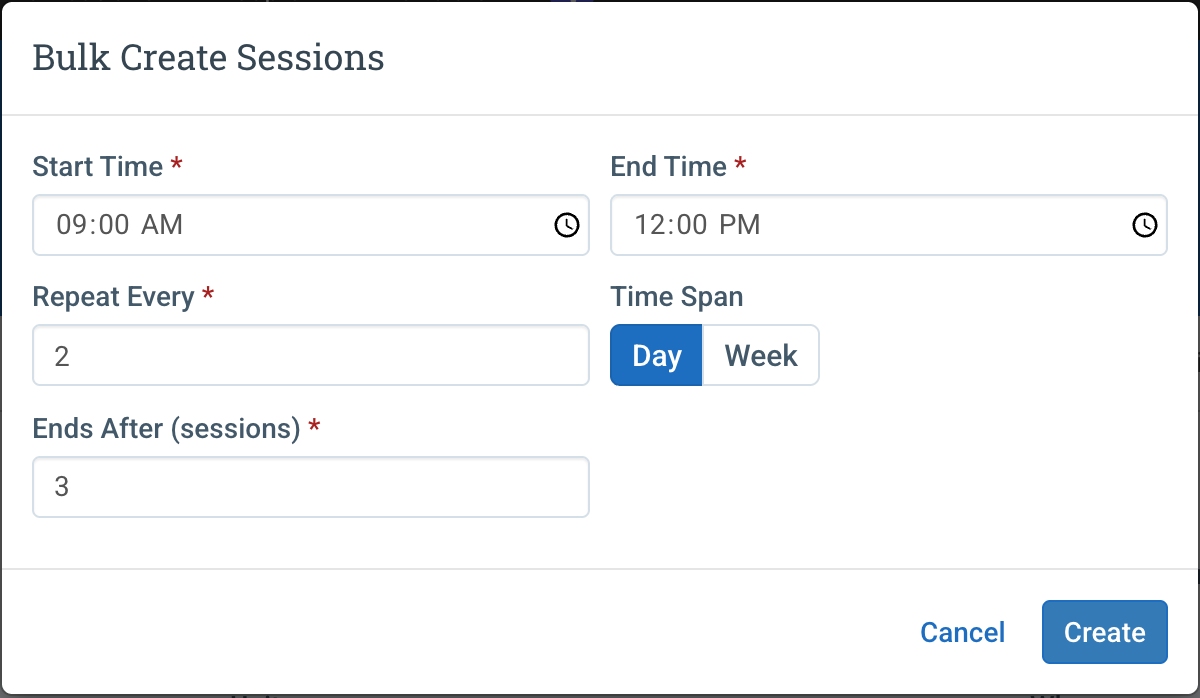
Sessions start on Day 1 and repeat over the valid classroom days. For example, on a Monday to Friday course:
| Repeat Every | Time Span | Ends After | Days created | Runs on, for an Event starting on a Monday |
|---|---|---|---|---|
| 1 | Day | 3 | 1, 2, 3 | Monday, Tuesday, Wednesday |
| 2 | Day | 3 | 1, 3, 5 | Monday, Wednesday, Friday |
| 1 | Week | 3 | 1, 6, 11 | Monday of three weeks in a row |
The window remembers the values you used last time, so you can adjust and regenerate quickly.
Sessions created before this way of counting days was introduced keep their existing Days until you regenerate them with Bulk Create Sessions.
Note
Bulk Create Sessions replaces all existing sessions on the template. You are asked to confirm before anything is deleted. If the template has Resource Requirements, they are removed too.
Adding or editing a single session
Select Create Session to add one session, such as a workshop on a day that already has a session.
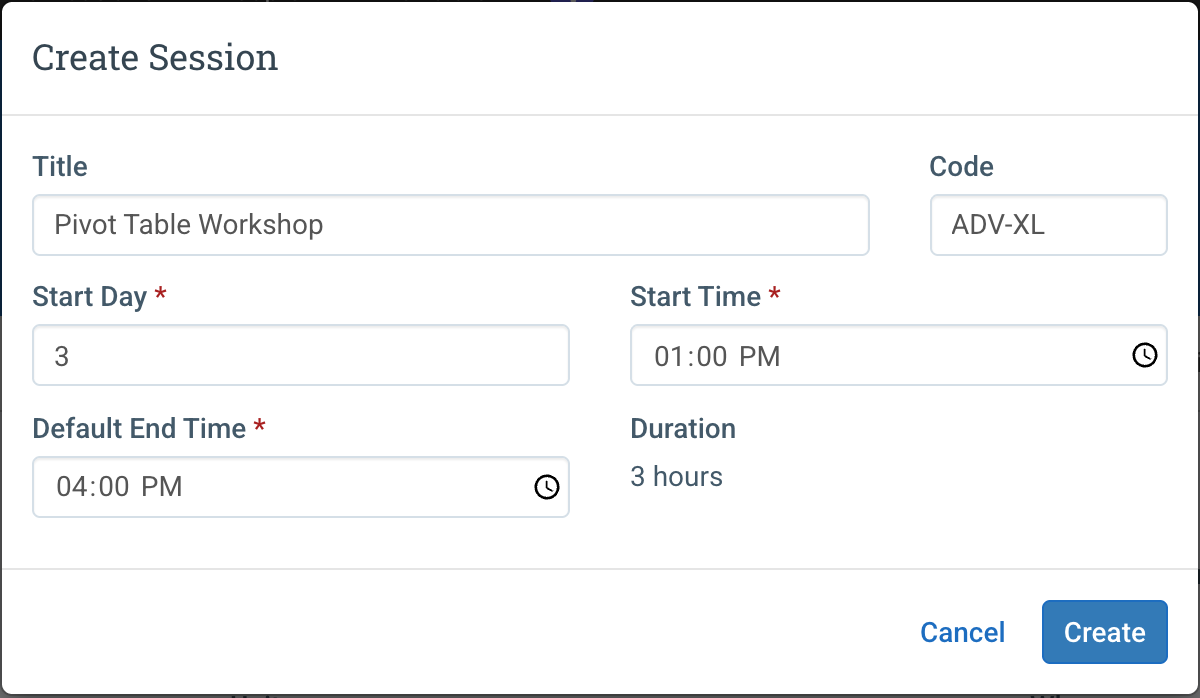
- Select Create Session.
- Enter a Title and, optionally, a Code.
- In Start Day, enter the course day the session runs on.
- Enter the Start Time and Default End Time. The Duration is calculated for you.
- Select Create.
To change or remove a session, open the ⋮ menu at the end of its row and choose Edit or Delete. Changing one session doesn’t move any of the others.
How sessions are placed on Event dates
When you create an Event from the template, each session is placed on the date that matches its Day, counting from the Event’s start date over the valid classroom days.
For example, a Monday to Friday course with sessions on Days 1, 3, 3 and 5, starting on Monday 9 November, runs on Monday 9, Wednesday 11 (twice) and Friday 13 November:
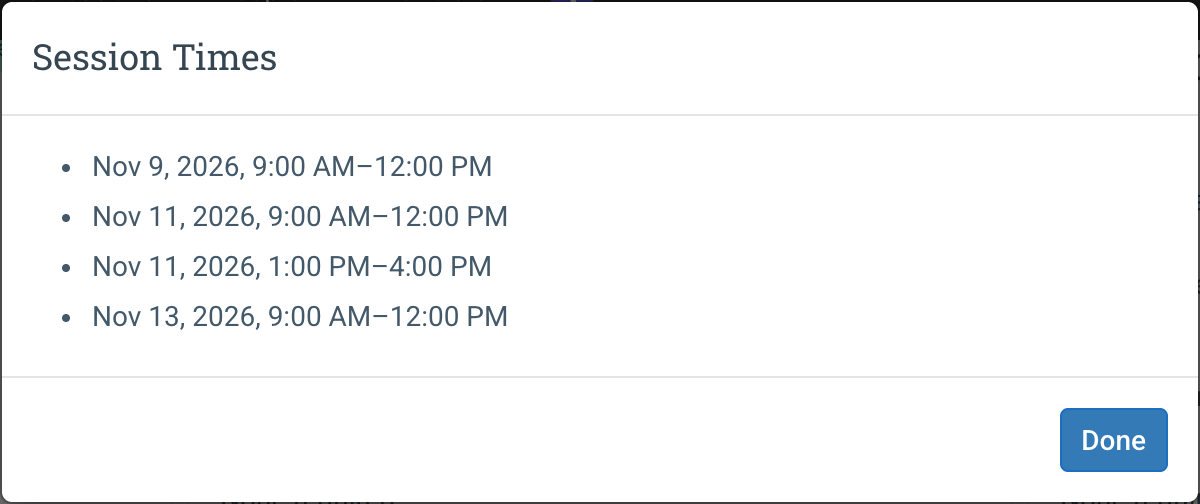
If an Event starts on a day that isn’t a valid classroom day, Day 1 moves to the next valid day.
The same course days are used everywhere sessions are scheduled, including when creating Events, in the Planner and when searching for available dates with Schedule a Course.
Template schedule vs Event schedule
The Course Template schedule defines the reusable structure of the course, while the Event schedule defines the real delivery plan.
- Course Template schedule defines the standard session structure for the course.
- Event schedule defines when those sessions actually occur.
If the curriculum structure changes, update the Course Template. If the dates change for a specific delivery, update the Event instead in its Outline tab.
Note
Changes made to the Course Template schedule affect future Events created from the template. Existing Events keep the sessions and dates they were created with.
When to update the schedule
Administrators typically update the Schedule tab when:
- a course gains new instructional sessions
- the course structure changes
- modules are added or removed
- the days of the week the course runs on change
- the training program is redesigned
Best practices
- Set Valid Classroom Days before creating sessions.
- Use Bulk Create Sessions for the regular pattern, then Create Session for extra sessions such as workshops.
- Use consistent naming for sessions across similar courses.
- Review the template schedule when the curriculum changes.
- Confirm the Event schedule after sessions are copied into a new Event.